How Shopify Stores Data: A Developer’s "No-Database" Guide 👇
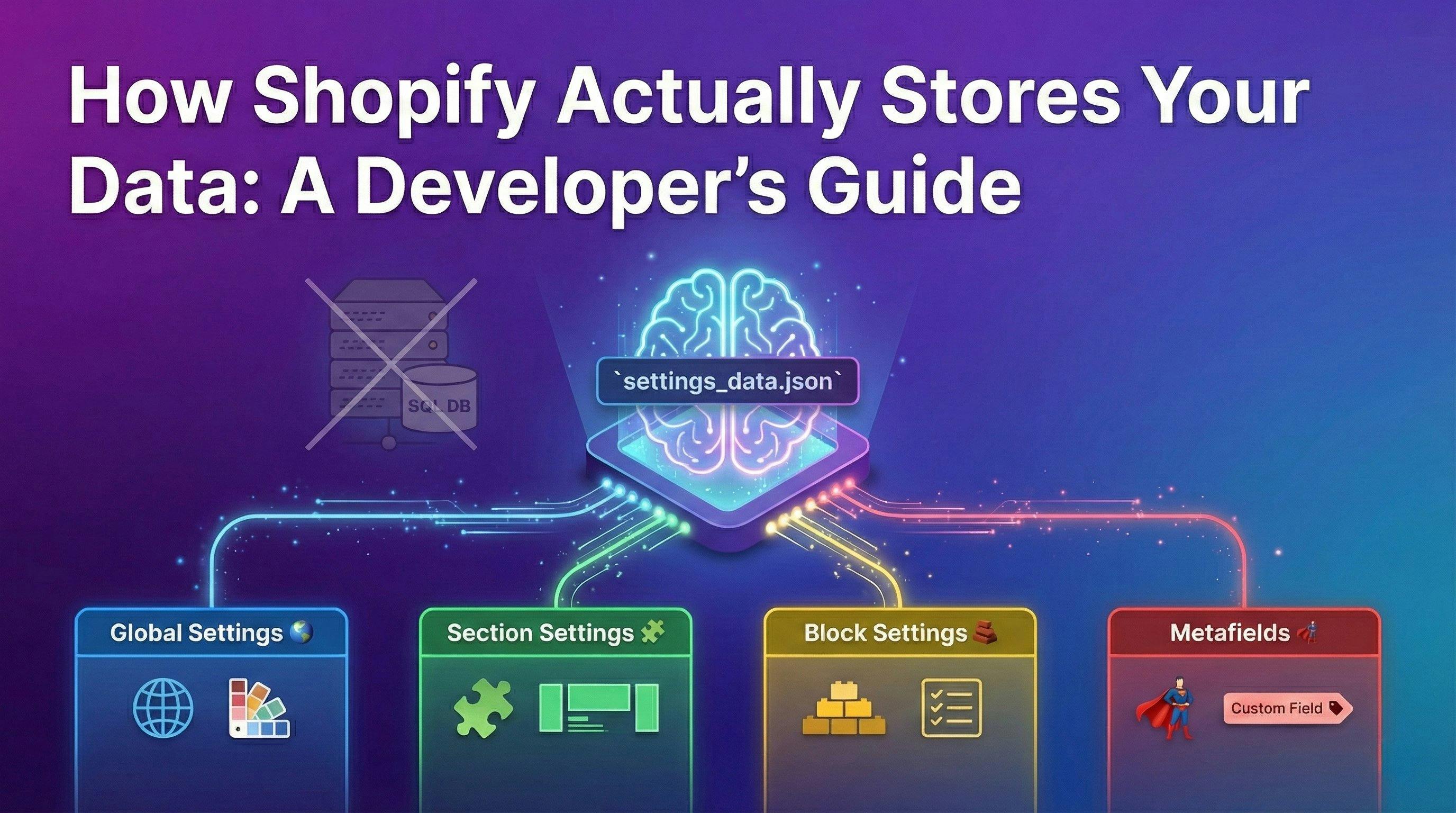
So, you’re diving into Shopify Theme Development. You’ve got your HTML, CSS, and Liquid skills ready. You pop open the hood, expecting to find... a database? SQL queries? A wp_options table?
Nope. 👻
If you’re coming from platforms like WordPress or Laravel, Shopify’s lack of a direct database interface can feel like missing a limb. “Where does the data go? How do I save a custom field?”
Here’s the plot twist: You don’t manage a database. 🛑
In the Shopify ecosystem, you are the frontend architect. Shopify is the backend powerhouse. Your job isn’t to build the vault; it’s to build the beautiful display cases that show off the jewels inside.
Let’s break down exactly how this works, why it’s actually a good thing, and how you can master data storage in your themes. 👇
When building a Shopify theme, you never write an INSERT INTO statement.
Instead, Shopify utilizes a SCHEMA-based architecture. You define the structure of data you want (inputs), and Shopify automatically handles th e storage and retrieval.
You create the settings, the Merchant fills them, and Shopify serves them. It’s a beautiful triangle of efficiency. 📐
Shopify gives you four primary "buckets" to store and access custom data within a theme. Mastering these is key to building themes that feel rigid but flexible.
The "Set Once, Use Everywhere" Bucket.
These are global variables available on every single page of the store. Perfect for brand-wide consistencies.
config/settings_schema.json<h1 style="color: {{ settings.primary_brand_color }}">
{{ shop.name }}
</h1>
The "Modular Block" Bucket.
This is the bread and butter of Shopify 2.0. These settings are scoped only to the specific section instance. You can have the same "Image Banner" section used 5 times on a page, each with different text and images.
{% schema %} tag of a Section file.<div class="hero-banner">
<h2>{{ section.settings.heading }}</h2>
</div>
The "Repeater" Bucket.
Inside a section, you often need repeating elements—like a checklist, a gallery grid, or testimonials. Blocks handle this granular data.
{% for block in section.blocks %}
  <div class="scary-testimonial">
    "{{ block.settings.quote }}" - {{ block.settings.author }}
  </div>
{% endfor %}
The "Custom Data" Bucket.
What if you need to store data for a specific resource—like "Washing Instructions" for a T-Shirt, or an "Author Name" for a Blog Post? Theme settings are too broad. Section settings are too temporary.
Enter Metafields.
Metafields allow you to attach custom fields to Products, Collections, Customers, and Orders.
<span>Material: {{ product.metafields.custom.material }}</span>
settings_data.jsonSo, where does all this configuration technically live?
Meet config/settings_data.json. 📄
This file is the heart of your theme’s configuration.
💡 Pro Tip: Always treat
settings_data.jsonas "User Generated Content". In your Git workflow, be mindful when merging this file to avoid wiping out a live store's configuration!
Let’s say you want to build a Custom Announcement Bar that the store owner can update.
Step 1: Define the Input (Schema)
In your section file (e.g., announcement-bar.liquid):
{% schema %}
{
  "name": "Announcement Bar",
  "settings": [
    {
      "type": "text",
      "id": "announcement_text",
      "label": "Message",
      "default": "Welcome to our store! 🚀"
    },
    {
      "type": "color",
      "id": "bg_color",
      "label": "Background Color",
      "default": "#000000"
    }
  ]
}
{% endschema %}
Step 2: Display the Data (Liquid) In the same file's HTML:
<div style="background-color: {{ section.settings.bg_color }};">
  <p>{{ section.settings.announcement_text }}</p>
</div>
Step 3: The merchant opens the editor, types "Sale ends tonight!", and hits Save. ✨ Shopify handles the rest.
For developers accustomed to databases, Shopify requires a mindset shift. You are not the database administrator. You are the Schema Designer.
Your goal is to create intuitive, flexible schemas that empower merchants to manage their content without repeatedly calling you for text changes. That’s the mark of a true Shopify Expert. 🏆
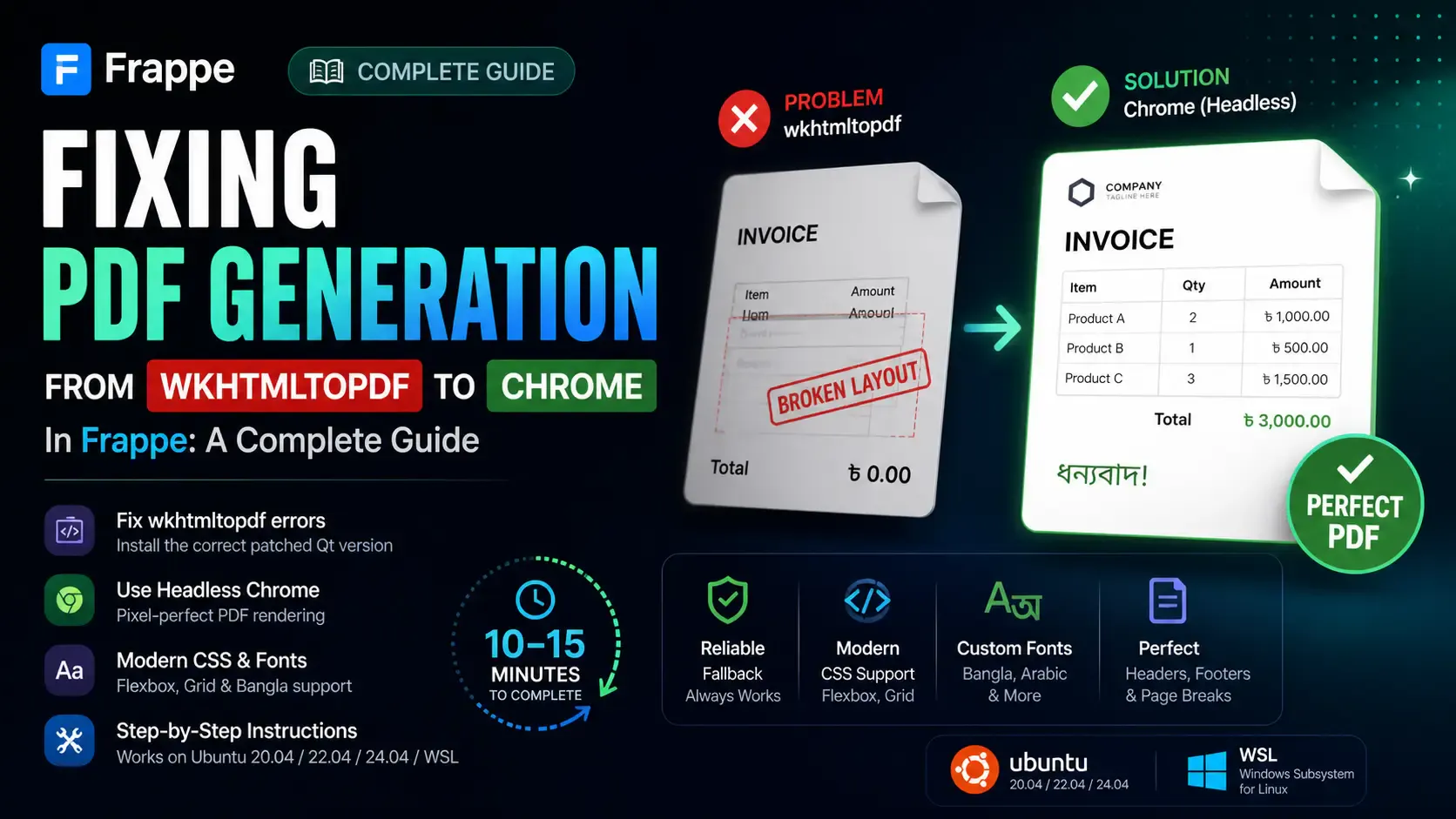
Getting the "Invalid wkhtmltopdf version" error in Frappe or ERPNext? Learn how to fix broken PDFs, install the patched Qt version, and switch to headless Chrome for pixel-perfect modern CSS and custom font support.

Learn how to quickly expose a localhost server to your local network on Windows using netsh portproxy. A step-by-step guide to accessing local apps from any device.
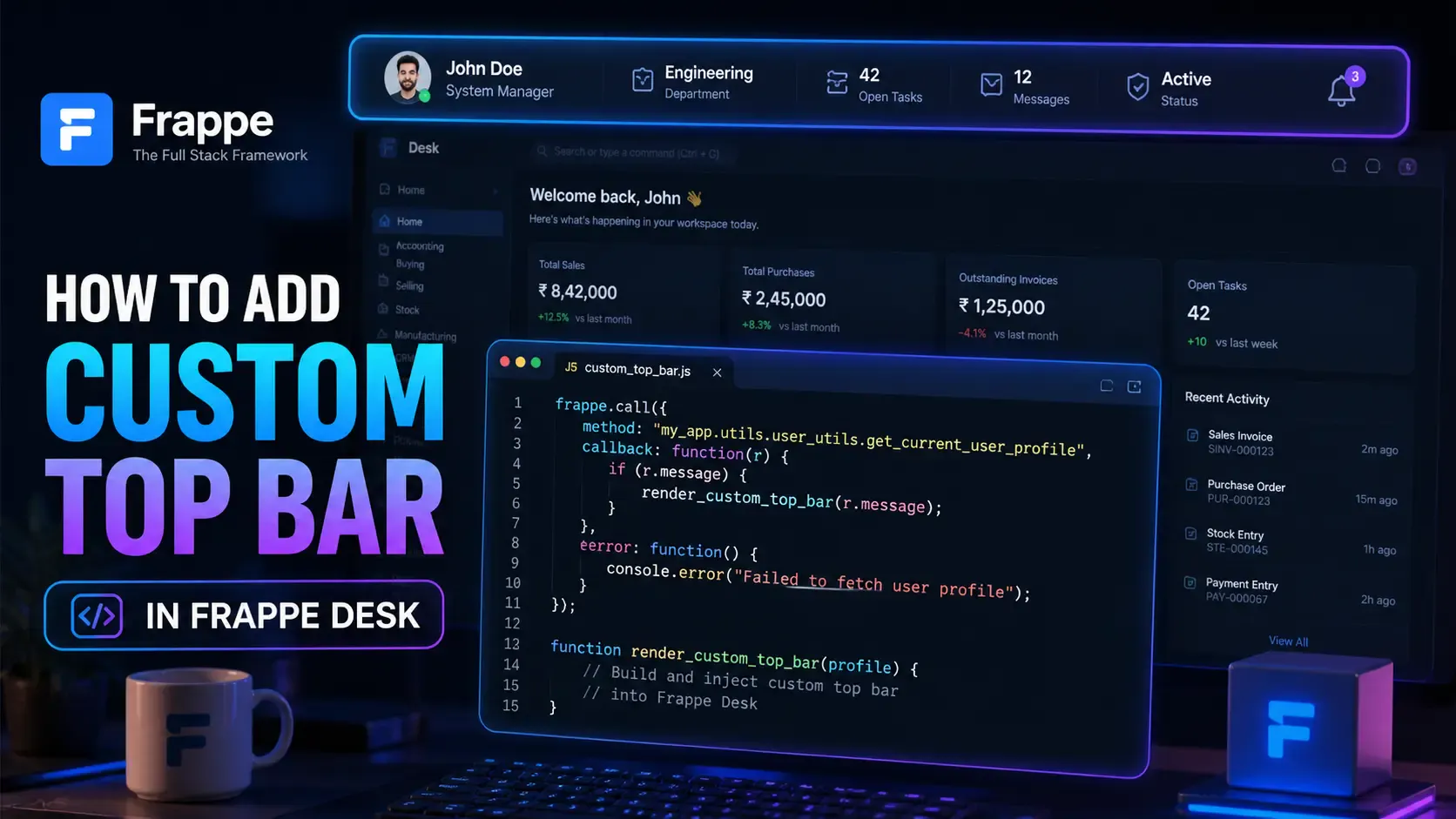
Learn how to enhance your Frappe Desk UI by adding a custom, dynamic top bar. Follow this beginner-friendly, step-by-step tutorial to display user profiles, statuses, and more!