How to Run pgAdmin 4 in WSL and Access from Windows
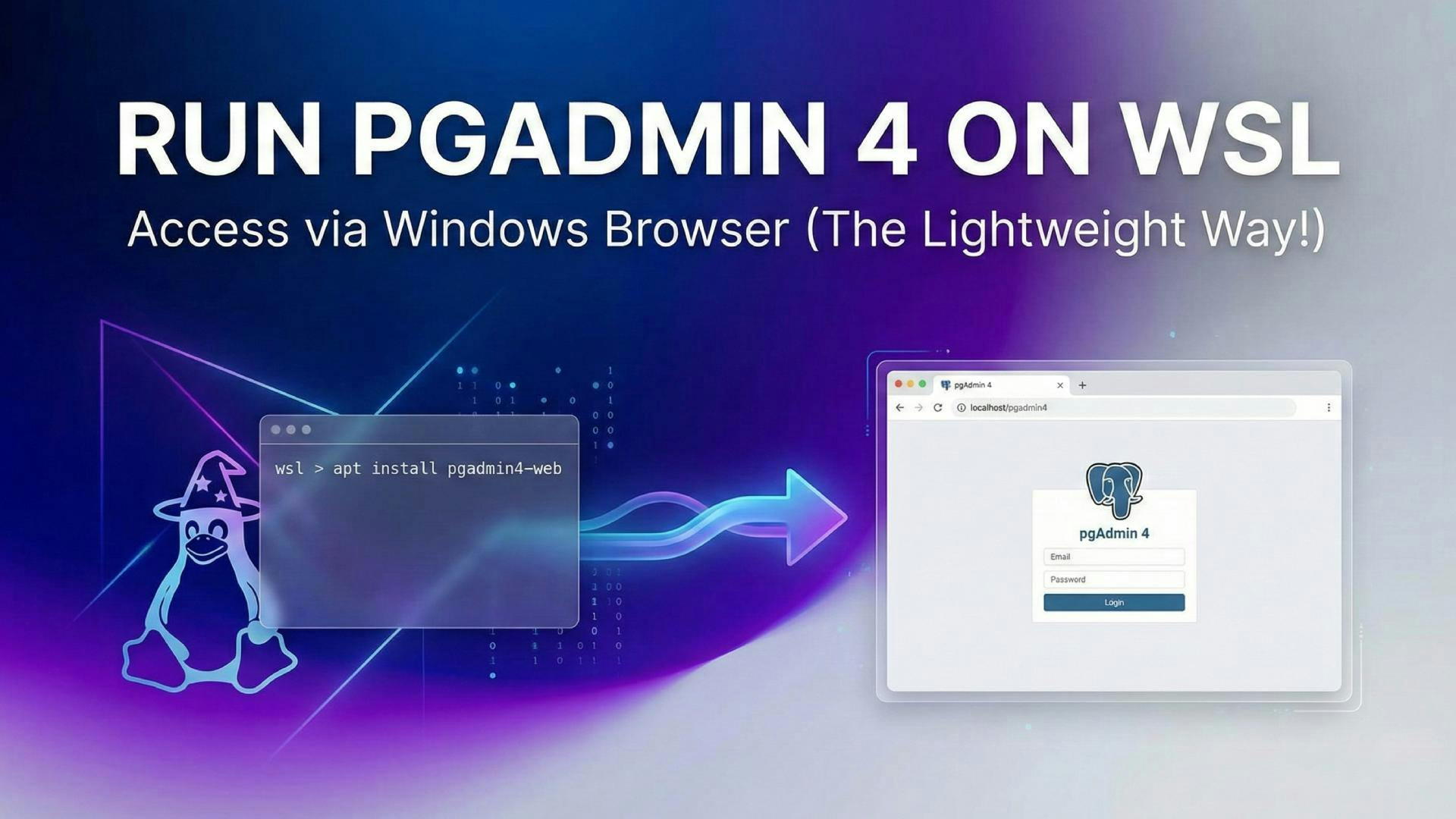
Stop installing heavy desktop apps for database management! If you're a developer rocking WSL (Windows Subsystem for Linux), there is a much smarter, lightweight, and "pro" way to handle your PostgreSQL databases.
Why clutter your Windows registry when you can run the pgAdmin 4 web interface cleanly inside Linux and access it directly from your favorite Windows browser? It feels native, saves resources, and makes you look like a total tech wizard. 🧙♂️✨
Ready to level up your workflow? Let's dive in! 👇
First things first. We don't need the bloat of the desktop client. We are going for the sleek, efficient web version.
Open your WSL terminal and run this command to fetch the official key. This ensures we're getting the genuine package. 🔐
curl -fsS https://www.pgadmin.org/static/packages_pgadmin_org.pub | sudo gpg --dearmor -o /usr/share/keyrings/packages-pgadmin-org.gpg
Now, tell your system where to find the pgAdmin goodies by copying and pasting this magic line:
sudo sh -c 'echo "deb [signed-by=/usr/share/keyrings/packages-pgadmin-org.gpg] https://ftp.postgresql.org/pub/pgadmin/pgadmin4/apt/$(lsb_release -cs) pgadmin4 main" > /etc/apt/sources.list.d/pgadmin4.list'
Refresh your package list and install the pgadmin4-web package. Run:
sudo apt update
sudo apt install pgadmin4-web
Now for the fun part! We need to set up a lightweight web server (Apache is used by default here) to serve the pgAdmin app. Think of it like setting up phpMyAdmin, but for Postgres. 🐘
Run the built-in setup script:
sudo /usr/pgadmin4/bin/setup-web.sh
📝 You'll need to answer a few quick prompts:
y (Yes) and hit Enter. ✅Here is the magic of WSL 2. It automatically forwards ports to your Windows host. No complex networking configuration required! 🎉
Boom! You are now inside the pgAdmin dashboard. But wait... where are your databases? 🤔
Unlike phpMyAdmin, pgAdmin doesn't just guess where your database server is. We need to introduce them properly.
Let's register your PostgreSQL server so pgAdmin can talk to it.
On the pgAdmin dashboard (left sidebar), Right-click on Servers 👉 Register 👉 Server...
A popup window will appear. Fill it out with these details:
Ubuntu DB or Localhost. (This is just a label for you).127.0.0.1
⚠️ Important: Use
127.0.0.1instead oflocalhost. Sometimes inside Linux containers/WSL, "localhost" tries to use a socket file which can cause permission headaches. The IP address forces a TCP connection. 🧠
5432 (Default)[postgresDBname]
Note: By default, this is
postgres, but if you created a specific database, it’s often safer to connect directly to that.
root (Or your specific postgres username)Click Save. 💾
If everything is correct, your server will appear, and you can browse your tables! 🥂
Did you get a scary red error saying FATAL: Peer authentication failed for user 'sab'? 😱
Don't panic! This just means PostgreSQL is being a bit too secure. It's configured to trust the operating system user identity rather than the password you just typed. We need to tell it to accept password logins.
Go back to your Ubuntu/WSL terminal.
Edit the authentication config file:
sudo nano /etc/postgresql/16/main/pg_hba.conf
(Note: Replace 16 with 14 or 15 if you are using an older version).
Find the line that looks like this:
local all all peer
Change peer to md5 (or scram-sha-256):
local all all scram-sha-256
Also, ensure the IPv4 line says scram-sha-256 or md5:
host all all 127.0.0.1/32 scram-sha-256
Save & Exit: Press Ctrl+O then Enter to save, and Ctrl+X to exit.
Restart Postgres to apply the changes:
sudo service postgresql restart
Now try clicking Save in pgAdmin again. It should work perfectly! 🎉
Happy Coding! 💻✨
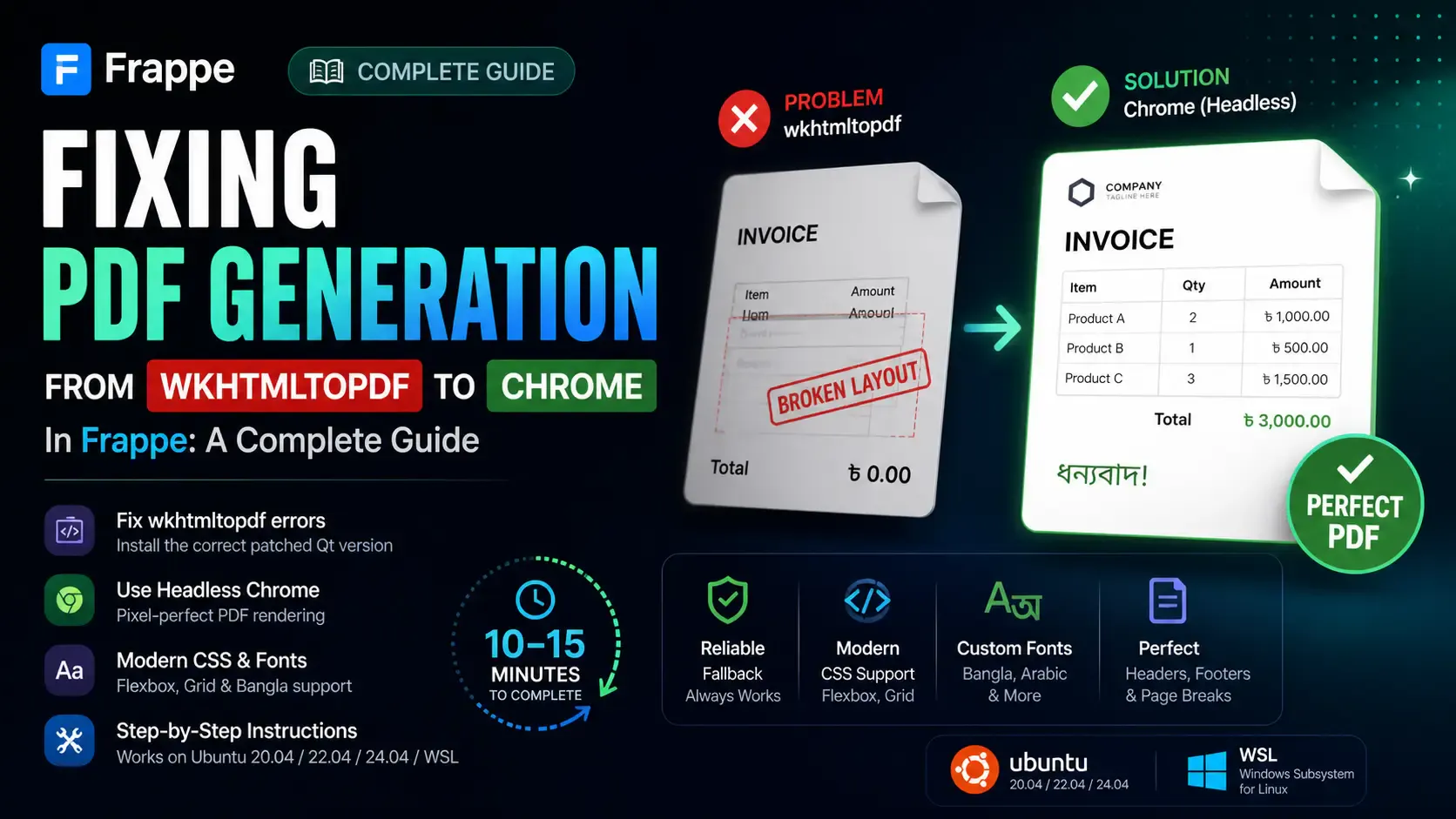
Getting the "Invalid wkhtmltopdf version" error in Frappe or ERPNext? Learn how to fix broken PDFs, install the patched Qt version, and switch to headless Chrome for pixel-perfect modern CSS and custom font support.

Learn how to quickly expose a localhost server to your local network on Windows using netsh portproxy. A step-by-step guide to accessing local apps from any device.

Learn how to enhance your Frappe Desk UI by adding a custom, dynamic top bar. Follow this beginner-friendly, step-by-step tutorial to display user profiles, statuses, and more!