Running Ollama in Docker and Kubernetes
Running Ollama on your laptop is great for testing. But the moment you want to ship it to a real product — with uptime, scaling, and team access — you need it containerized and orchestrated properly. This guide walks you from a single Docker container to a working Kubernetes deployment, step by step.
Around 20–30 minutes for the full Docker + Kubernetes setup.
docker-compose.yml for local and small production setups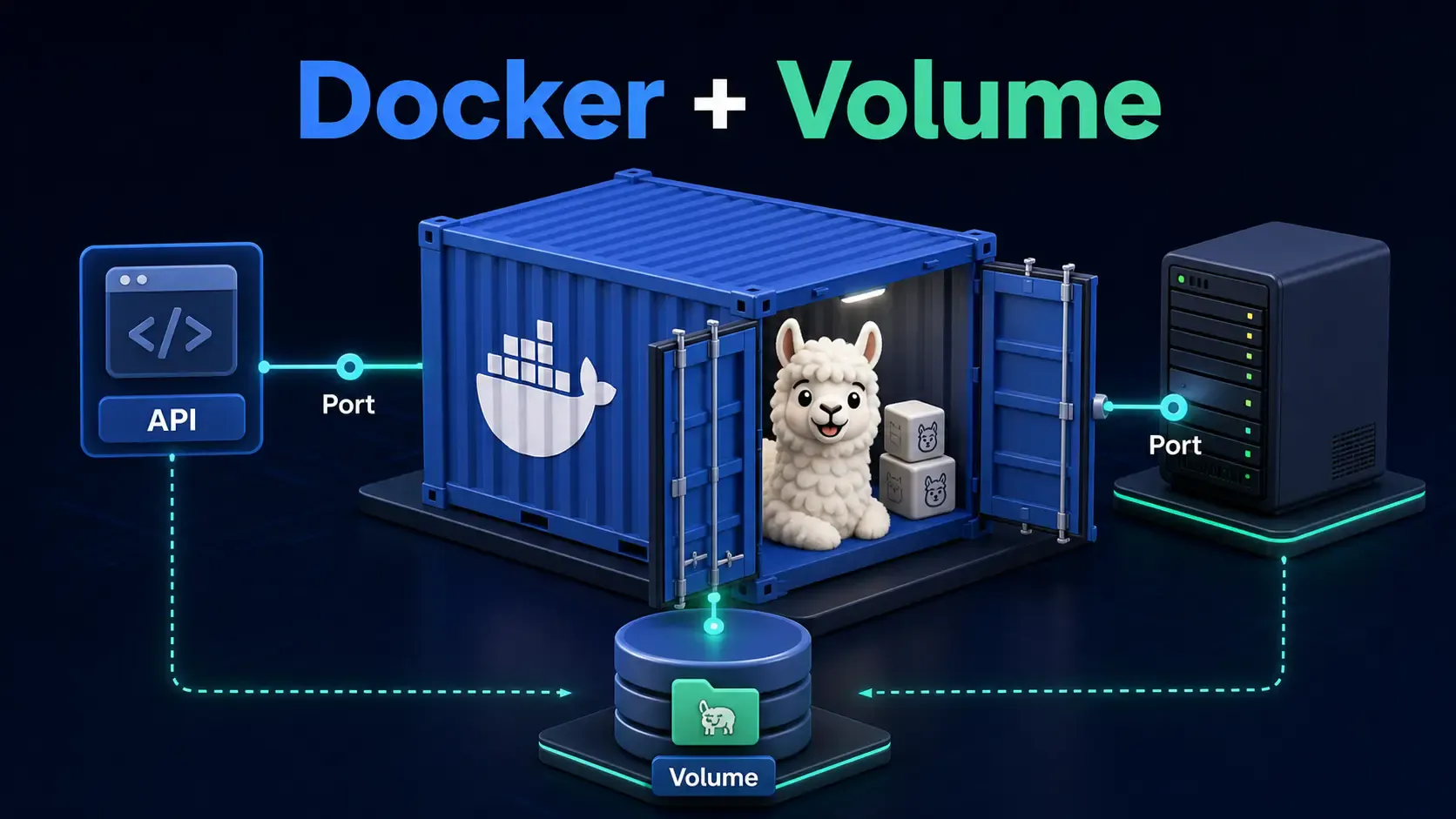
The official Ollama image makes this a one-liner:
docker run -d \
  --name ollama \
  -p 11434:11434 \
  -v ollama_data:/root/.ollama \
  ollama/ollama
What this does:
-d runs it in the background-p 11434:11434 exposes the Ollama API on your host-v ollama_data:/root/.ollama persists downloaded models in a named volume, so they survive container restartsPull and run a model exactly like you would natively:
docker exec -it ollama ollama run llama3.2
[!TIP] Without the volume mount, every container restart wipes your downloaded models — and re-downloading a multi-gigabyte model every time gets old fast.
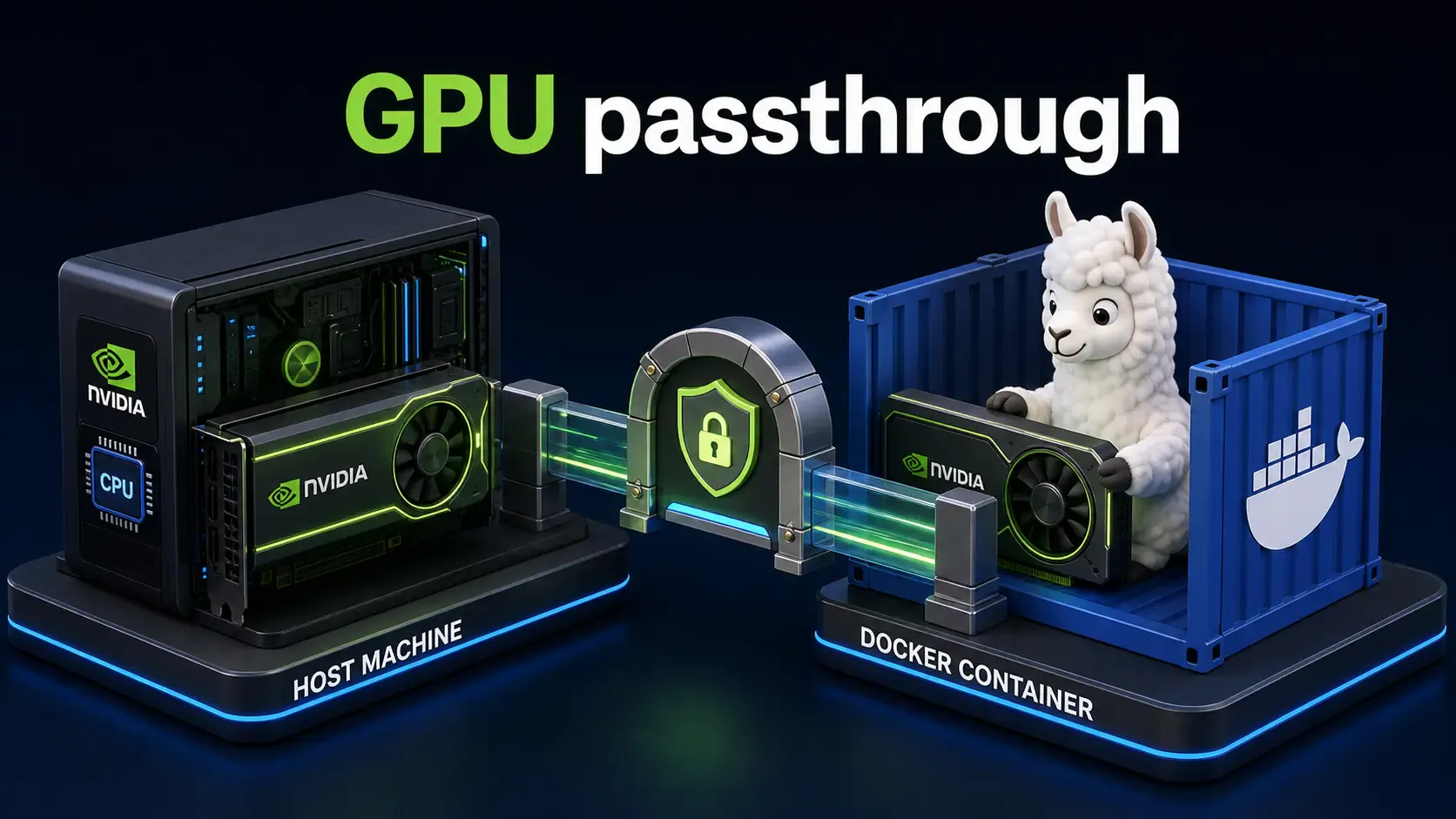
By default, Docker containers can't see your GPU. If you have an NVIDIA GPU and want Ollama to use it:
docker run -d \
  --name ollama \
  --gpus all \
  -p 11434:11434 \
  -v ollama_data:/root/.ollama \
  ollama/ollama
The --gpus all flag requires the NVIDIA Container Toolkit to be installed on the host machine first. Verify it's working:
docker exec -it ollama nvidia-smi
If you see your GPU listed, you're good. If not, Ollama will silently fall back to CPU — which still works, just slower.
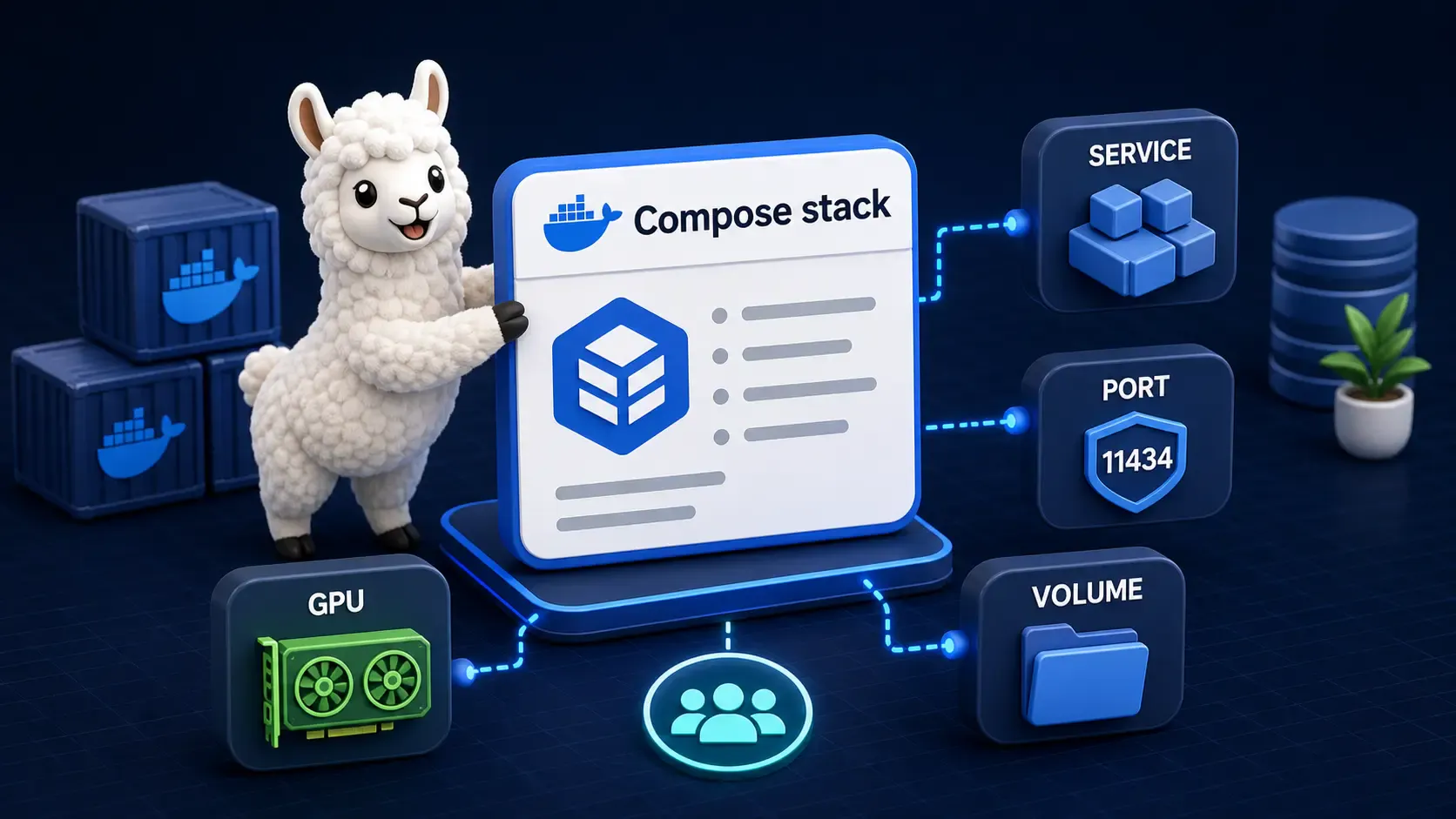
For anything beyond a quick test, use docker-compose.yml so your whole team can spin up the same environment:
services:
  ollama:
    image: ollama/ollama
    container_name: ollama
    restart: unless-stopped
    ports:
      - "11434:11434"
    volumes:
      - ollama_data:/root/.ollama
    deploy:
      resources:
        reservations:
          devices:
            - driver: nvidia
              count: all
              capabilities: [gpu]

volumes:
  ollama_data:
Start it:
docker compose up -d
[!NOTE] The
deploy.resourcesGPU block only takes effect with Docker Compose's Swarm-aware GPU support. On plaindocker compose(non-Swarm), you may needruntime: nvidiainstead, depending on your Docker version. Test withnvidia-smiinside the container to confirm.
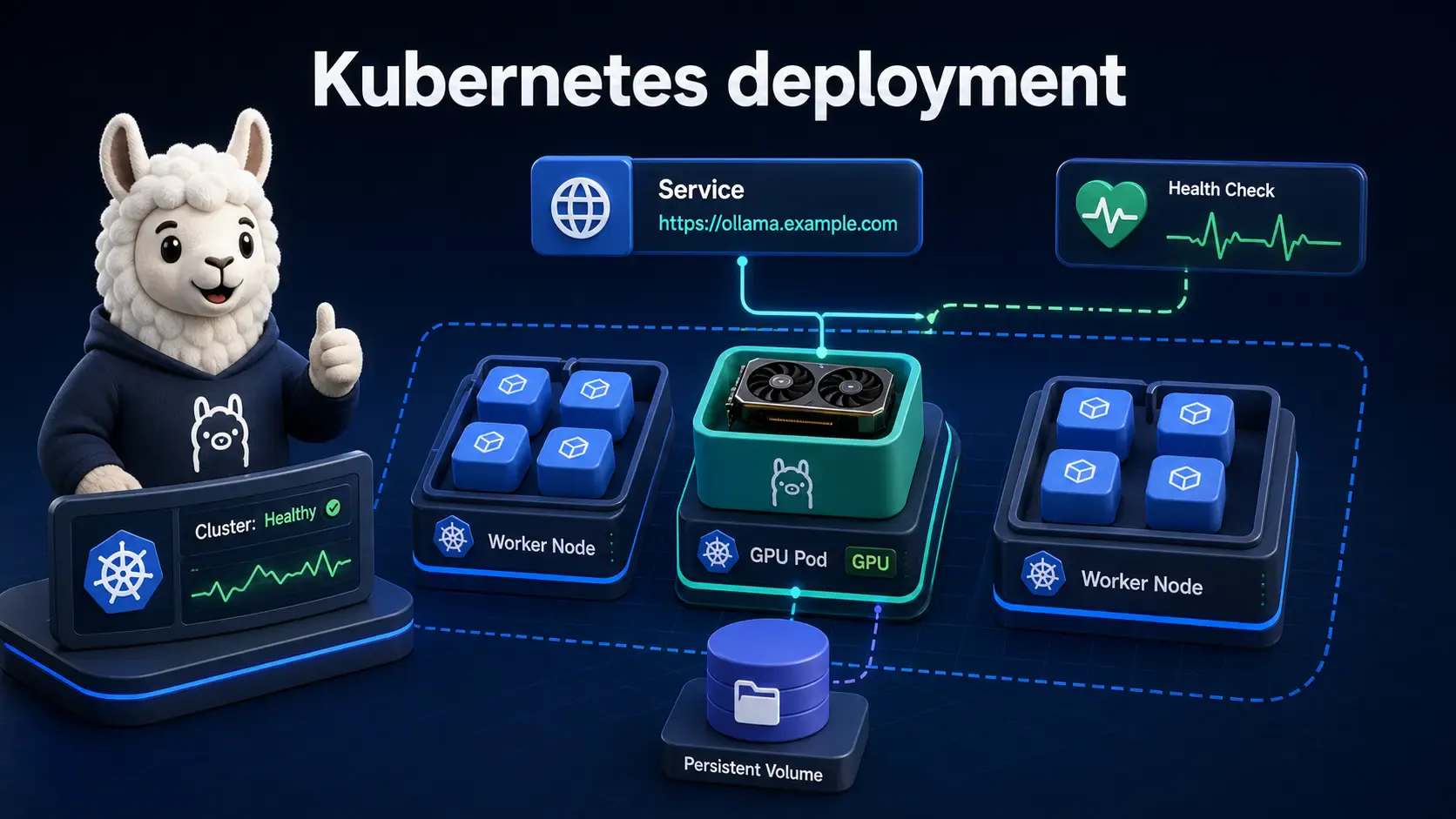
For real production scale, Kubernetes gives you restarts, scaling, and rolling updates for free. Here's a minimal but functional deployment.
apiVersion: apps/v1
kind: Deployment
metadata:
  name: ollama
spec:
  replicas: 1
  selector:
    matchLabels:
      app: ollama
  template:
    metadata:
      labels:
        app: ollama
    spec:
      containers:
        - name: ollama
          image: ollama/ollama
          ports:
            - containerPort: 11434
          resources:
            limits:
              nvidia.com/gpu: 1
          volumeMounts:
            - name: ollama-data
              mountPath: /root/.ollama
      volumes:
        - name: ollama-data
          persistentVolumeClaim:
            claimName: ollama-pvc
apiVersion: v1
kind: PersistentVolumeClaim
metadata:
  name: ollama-pvc
spec:
  accessModes:
    - ReadWriteOnce
  resources:
    requests:
      storage: 50Gi
apiVersion: v1
kind: Service
metadata:
  name: ollama
spec:
  selector:
    app: ollama
  ports:
    - port: 11434
      targetPort: 11434
  type: ClusterIP
Apply all three:
kubectl apply -f ollama-pvc.yaml
kubectl apply -f ollama-deployment.yaml
kubectl apply -f ollama-service.yaml
[!IMPORTANT] The
nvidia.com/gpu: 1resource request only works if your cluster has the NVIDIA device plugin for Kubernetes installed and GPU-enabled nodes. Without it, remove theresources.limitsblock to run on CPU.
Don't let Kubernetes (or Docker) think Ollama is healthy when it isn't. Add a basic probe to the deployment spec:
          readinessProbe:
            httpGet:
              path: /
              port: 11434
            initialDelaySeconds: 10
            periodSeconds: 10
          livenessProbe:
            httpGet:
              path: /
              port: 11434
            initialDelaySeconds: 30
            periodSeconds: 30
This makes sure traffic only routes to the pod once Ollama's API actually responds, and restarts the pod automatically if it crashes.
Ollama is not stateless in the way a typical web app is — each replica needs its own loaded model in GPU memory. Keep this in mind:
| Approach | When to use |
|---|---|
| Single replica, bigger GPU | Most small-to-medium teams; simplest to operate |
| Multiple replicas, one model each | High request volume, willing to pay for more GPUs |
| Load balancer in front of replicas | Once you have 2+ replicas, to distribute requests evenly |
[!TIP] Horizontal Pod Autoscaler (HPA) based on CPU doesn't work well for GPU-bound workloads. If you need autoscaling, scale based on GPU utilization metrics or request queue depth instead.
| Task | Command |
|---|---|
| Run Ollama in Docker | docker run -d -p 11434:11434 -v ollama_data:/root/.ollama ollama/ollama |
| Run with GPU | add --gpus all |
| Run a model inside container | docker exec -it ollama ollama run llama3.2 |
| Start via Compose | docker compose up -d |
| Apply Kubernetes manifests | kubectl apply -f <file>.yaml |
| Check GPU visibility in container | docker exec -it ollama nvidia-smi |
| Check pod status | kubectl get pods |
| View pod logs | kubectl logs -f deployment/ollama |
/root/.ollama — losing this means re-downloading every model from scratch.