Best Hardware for Running Ollama Locally
Choosing hardware for Ollama is mostly about matching model size with memory. This guide explains RAM, VRAM, GPU, CPU, quantization, and what beginners should buy or use first.
Around 12-18 minutes.
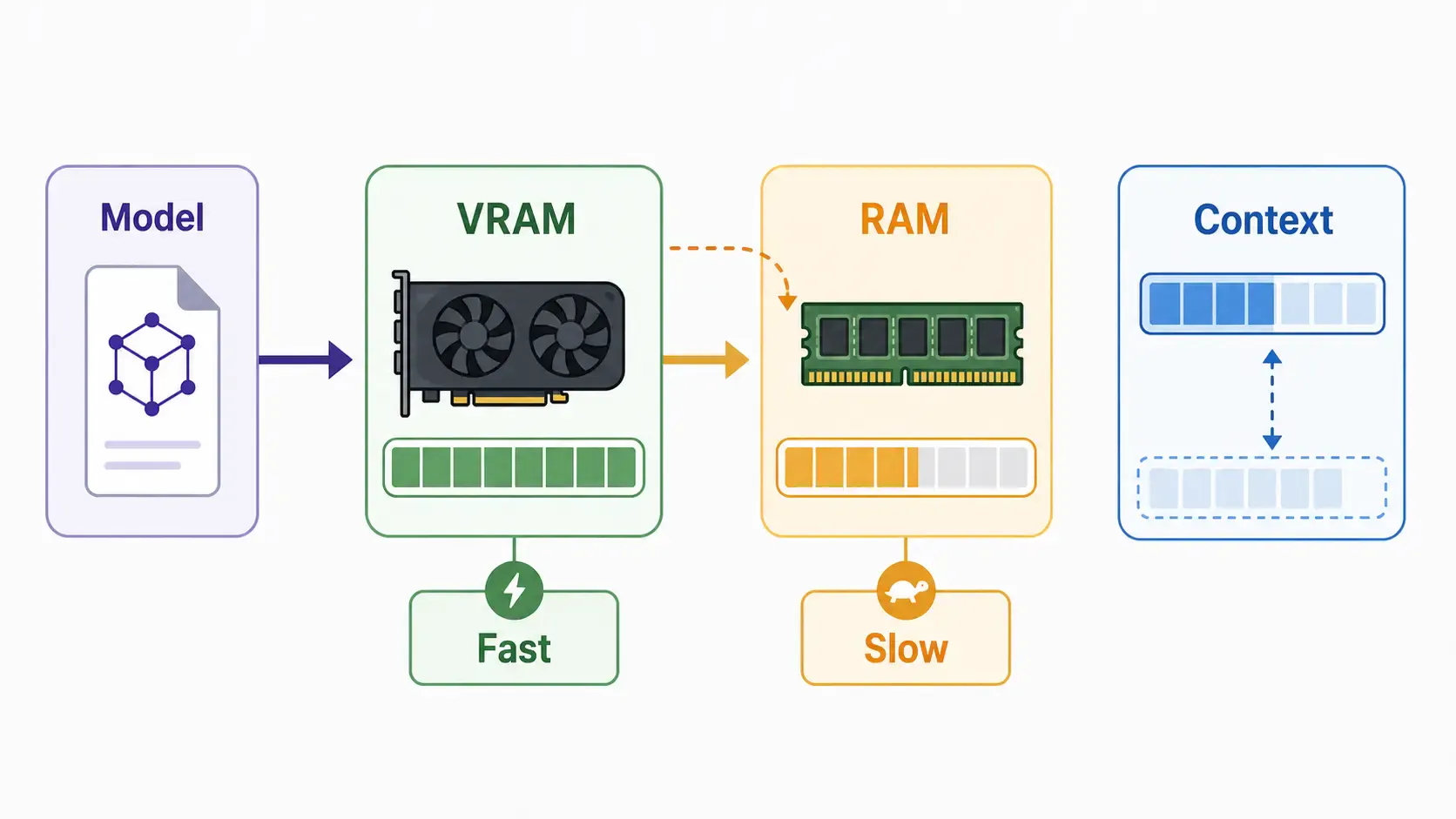
For Ollama, memory is usually more important than raw CPU speed.
The model has to fit somewhere:
If the model fits mostly in GPU VRAM, it usually runs faster. If it spills into system RAM or CPU, it can still work, but generation may be much slower.
When you see a model name with 7B, 14B, 32B, or 70B, that roughly means the number of parameters.
Beginner version:
Quantization reduces memory needs. A 4-bit quantized model is much smaller than the full precision version, but there can be quality tradeoffs.
Can you run Ollama without a GPU?
Yes. But expect slower output.
CPU-only is fine for:
CPU-only is not ideal for:
If you are just starting, CPU-only is acceptable. Do not buy hardware until you know your actual use case.
Modern Apple Silicon Macs are popular for local AI because they have unified memory. That means CPU and GPU share memory, which can be useful for local models.
Good fit:
Watch out for:
If you are buying a Mac for Ollama, memory matters. More unified memory gives you more room for bigger models and larger context windows.
For many developers, an NVIDIA GPU desktop is the best price/performance path for local AI.
Good fit:
The key number is VRAM. A faster GPU with low VRAM may be less useful than a slightly slower GPU with more VRAM.
Beginner buying logic:
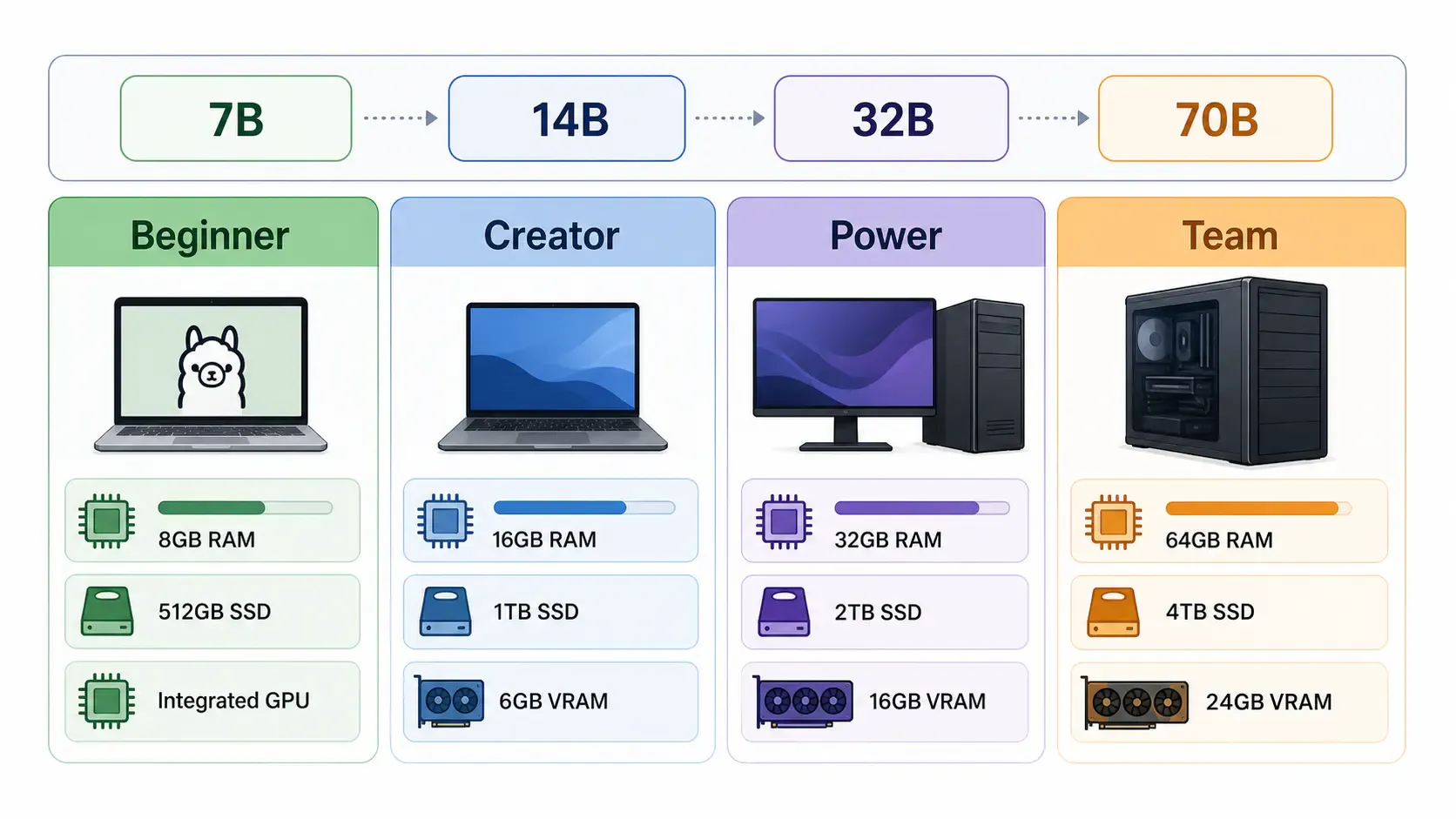
| Tier | Good for | Suggested model range |
|---|---|---|
| Beginner laptop | Learning, testing, small chat | 3B-8B |
| Developer laptop | Coding helper, light RAG | 7B-14B |
| Desktop GPU | Faster local workflows | 7B-32B |
| Workstation/server | Team usage, larger models | 32B-70B+ |
These are practical ranges, not hard rules. Quantization, context length, backend support, and model architecture all affect real memory usage.
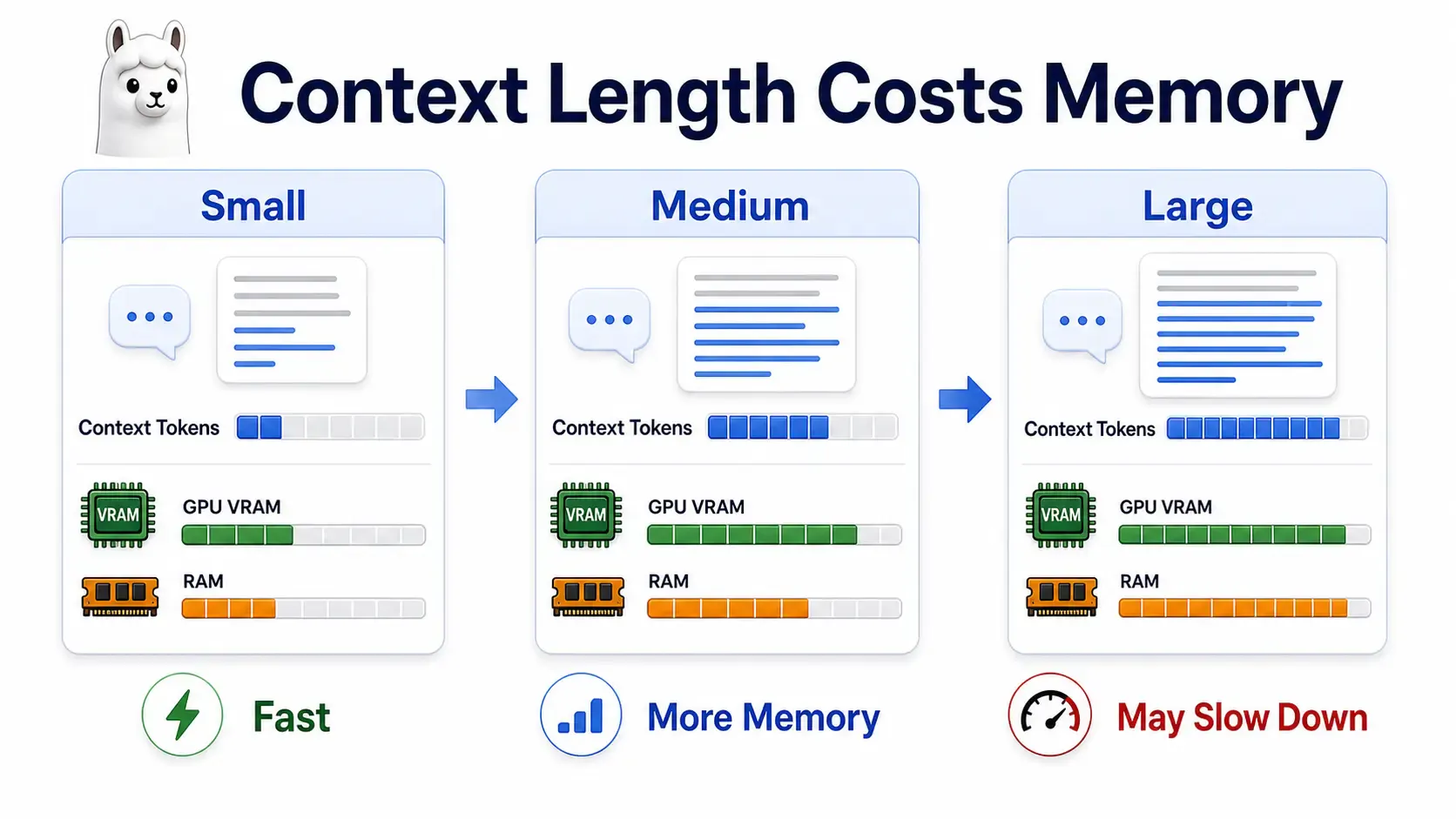
A bigger context window lets the model read more text at once. That is useful for:
But more context also uses more memory. If a model runs fine with a small context but slows down with a huge context, memory pressure is often the reason.
For beginners, do not max out context length just because a model supports it. Start smaller, then increase only when needed.
Ollama model files can take a lot of disk space. If your system drive is small, move model storage using OLLAMA_MODELS.
Example:
[Environment]::SetEnvironmentVariable("OLLAMA_MODELS", "D:\ollama-models", "User")
Then restart Ollama.
For Linux systemd:
[Service]
Environment="OLLAMA_MODELS=/mnt/ai/ollama-models"
Use an SSD if possible. Disk speed does not replace RAM/VRAM, but it helps with loading and managing large model files.
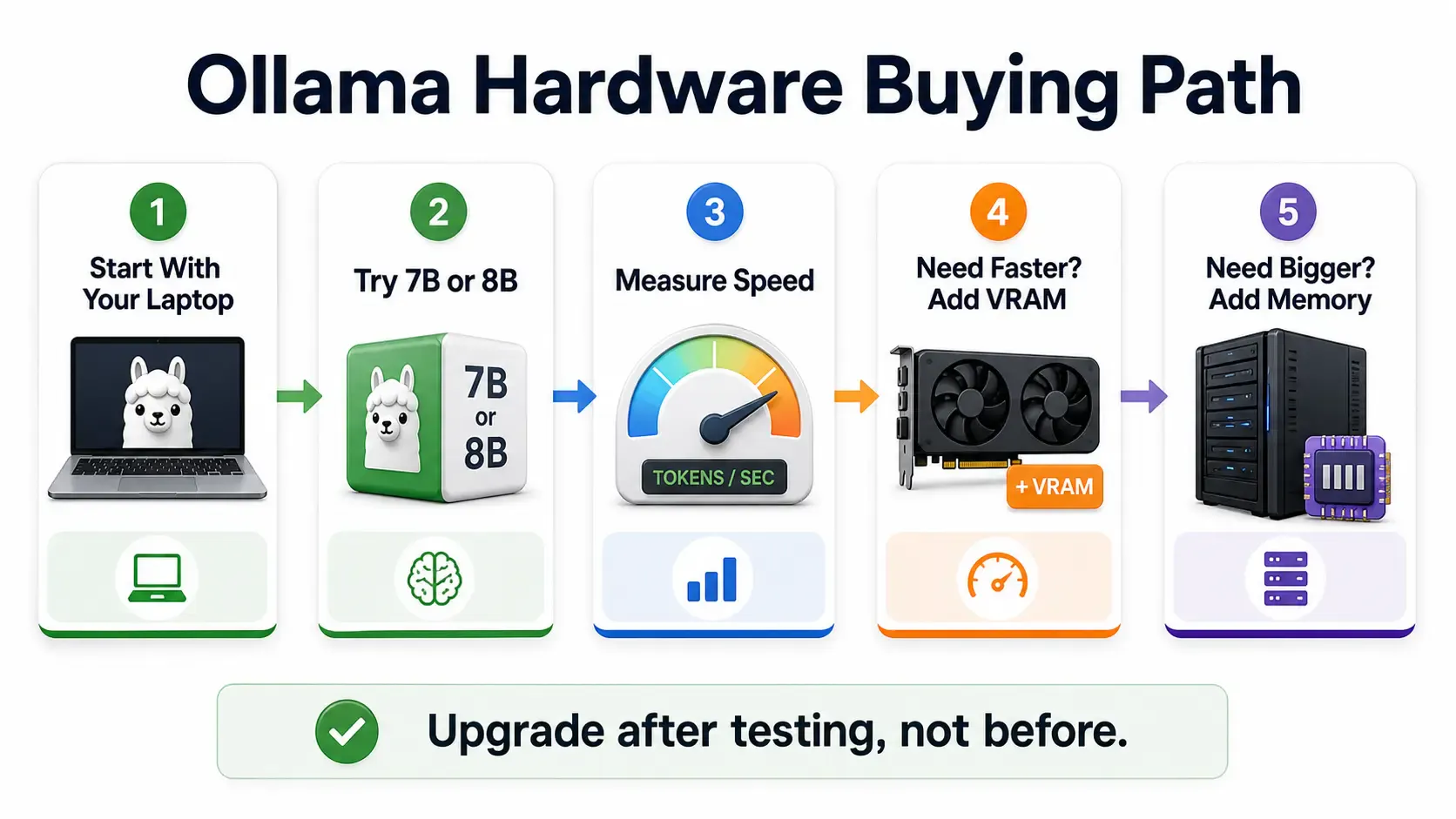
If you already have a decent machine, start with what you have.
If you are buying:
Do not buy a GPU only because a model name looks exciting. Decide what you want to run first.
For most developers:
Local AI hardware is a balancing act. The best setup is not the most expensive one. It is the one that runs your target model fast enough for your real workflow.
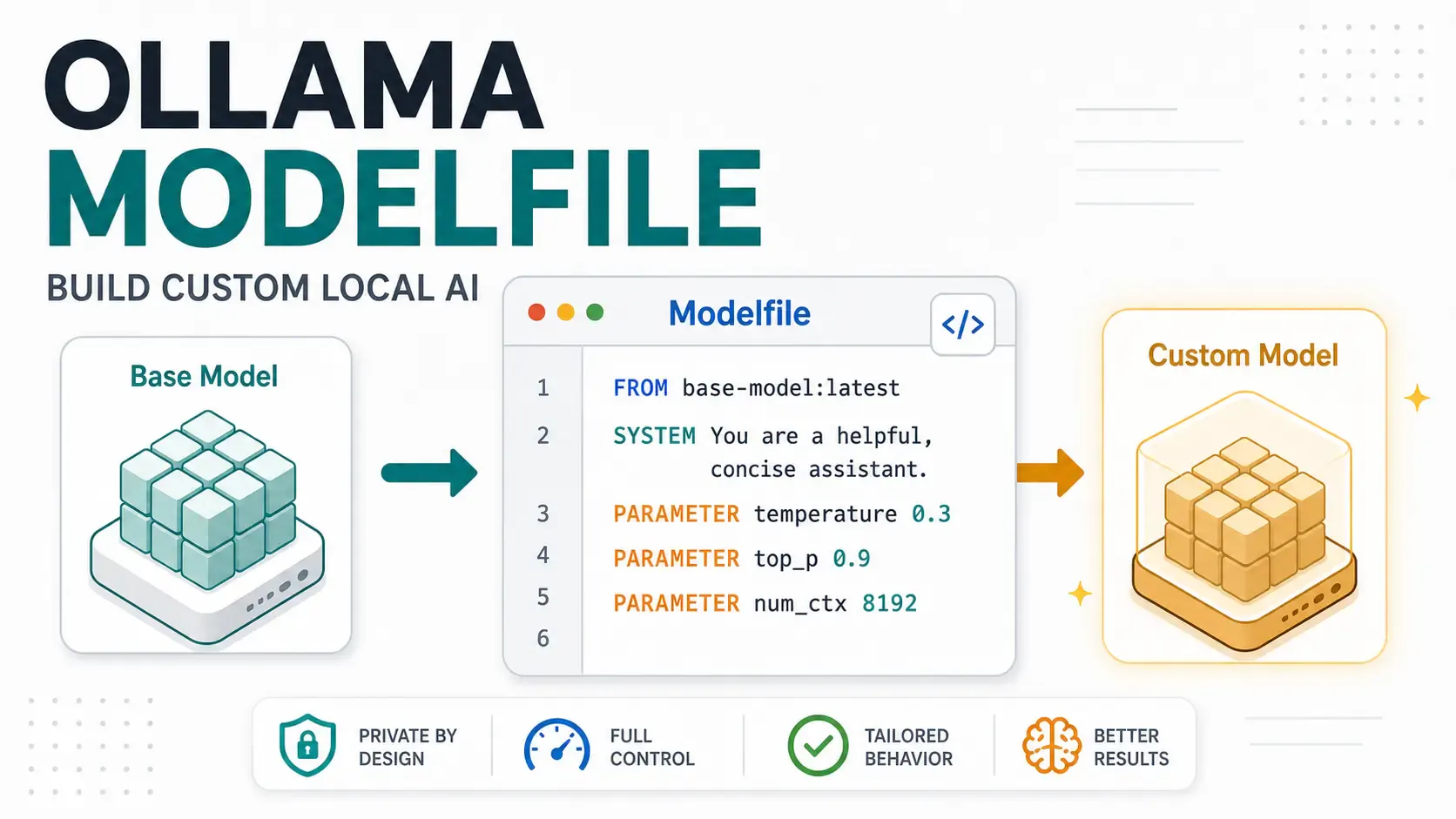
A hands-on Ollama Modelfile tutorial for developers building local AI assistants, support bots, code reviewers, and private app workflows.
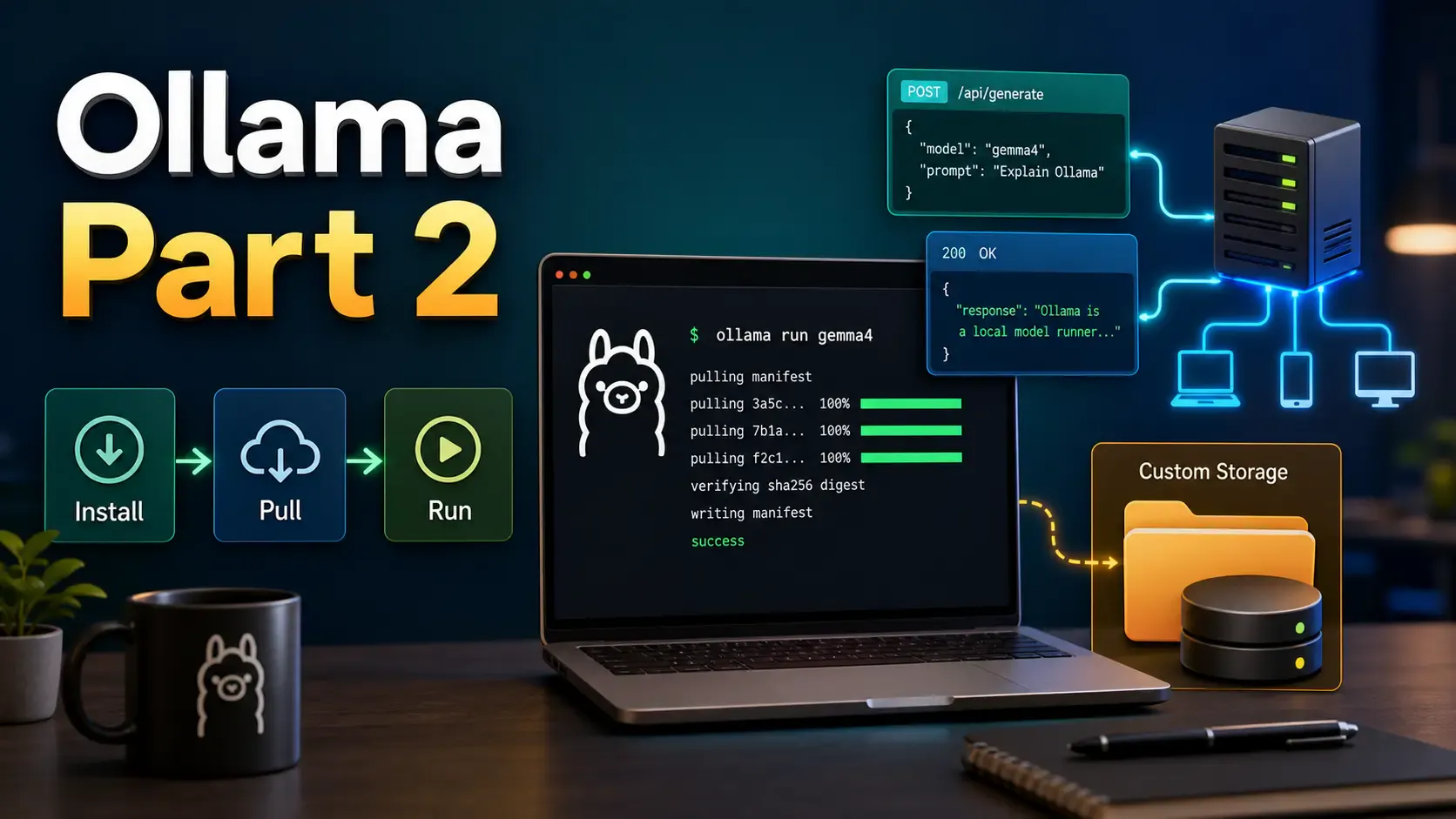
Learn how to install Ollama, run local models from CLI and UI, call the Ollama API, move model storage, and expose Ollama safely on a network.
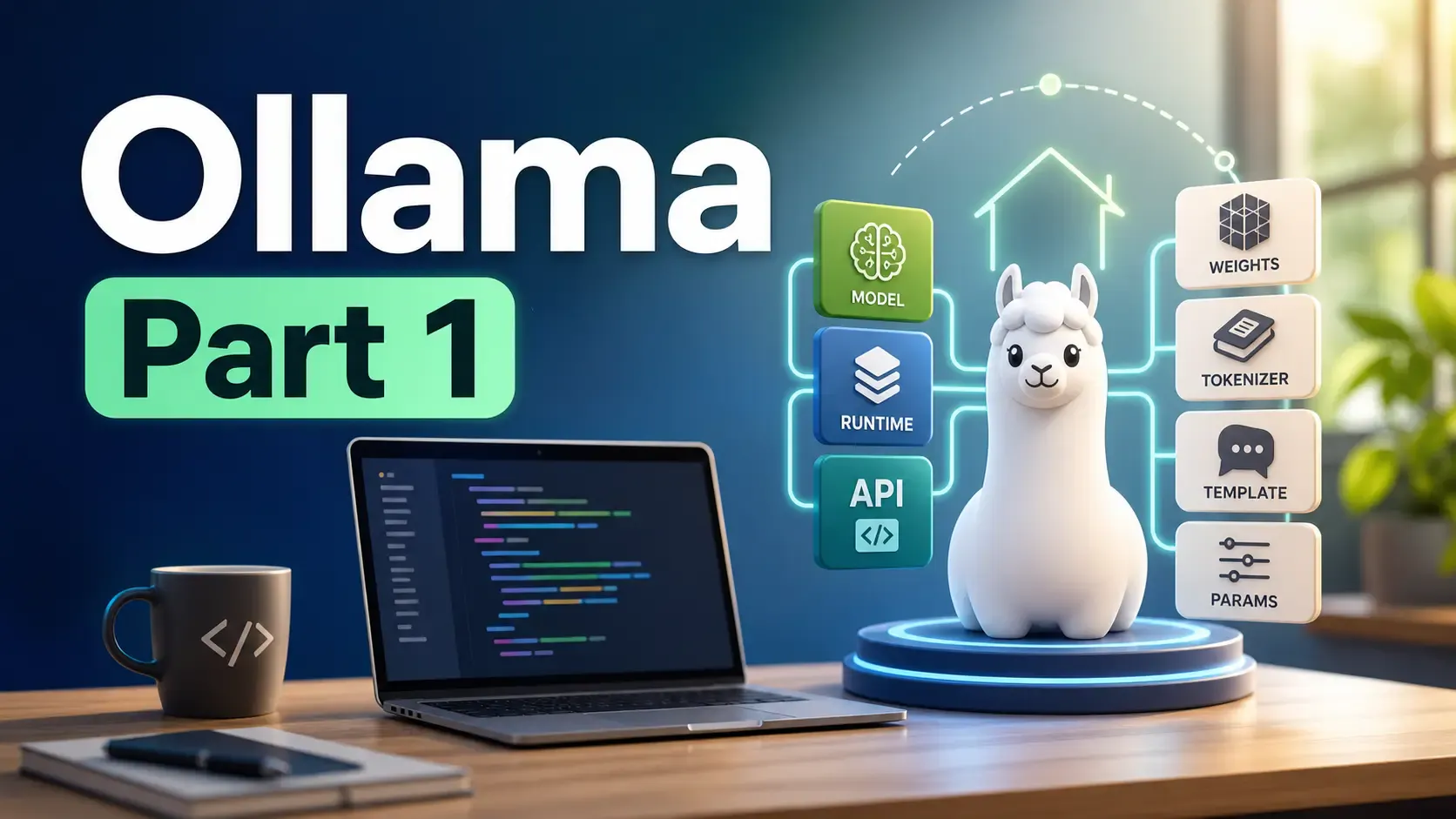
Learn what Ollama is, how it differs from Llama, how local AI models are packaged, and where Ollama fits in a developer workflow.