How to Find WSL Distro Paths and Import VHDX Files
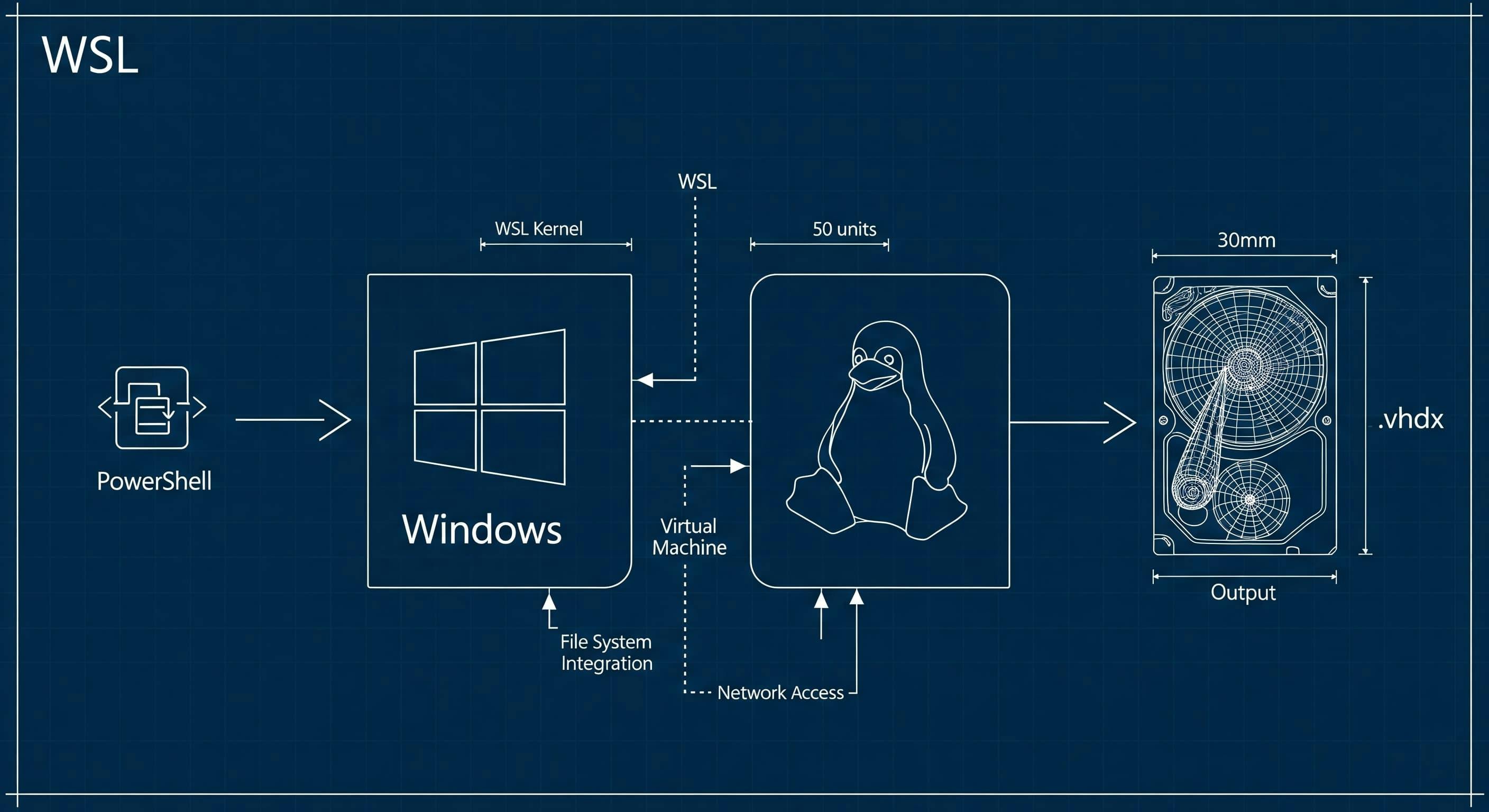
Need to manage your Windows Subsystem for Linux (WSL) environments for backups or to save disk space? This guide gets straight to the point, giving you the exact commands to quickly find where your WSL distros are stored and how to import one from a .vhdx file.
To see where all your WSL distributions are stored, open a PowerShell terminal and run this one-liner.
Get-ChildItem HKCU:\Software\Microsoft\Windows\CurrentVersion\Lxss | ForEach-Object { Get-ItemProperty $_.PSPath } | Select-Object DistributionName, BasePath
This command queries the Windows Registry and lists all registered distributions and their BasePath (the folder containing the virtual disk).
DistributionName BasePath
---------------- --------
Ubuntu-22.04     C:\Users\USER\AppData\Local\Packages\CanonicalGroupLimited.Ubuntu22.04LTS_79rhkp1fndgsc\LocalState
docker-desktop   \\?\F:\Users\USER\AppData\Local\Docker\wsl\DockerDesktopWSL\main
u24superset      C:\Users\USER\AppData\Local\Packages\CanonicalGroupLimited.Ubuntu24.04LTS_79rhkp1fndgsc\LocalState
U22              \\?\E:\wslDistro\Ubuntu-22.04
u24              \\?\E:\wslDistro\Ubuntu-24.04
The wsl --import command lets you register a .vhdx file as a new WSL distribution. This is perfect for restoring backups or moving environments to a new drive.
The command structure is:
wsl --import --vhd <NewDistroName> <InstallLocation> <PathToVHDXFile> --version 2
<NewDistroName>: The name for your new distro (e.g., ubuntu-clone).<InstallLocation>: The folder where the new distro will be stored.<PathToVHDXFile>: The full path to your .vhdx file.To import an ext4.vhdx file as a new distro named u24superset and place it in D:\wslDistro, run this:
wsl --import --vhd u24superset "D:\wslDistro" "D:\wslDistro\superset\ext4.vhdx" --version 2
A success message confirms the import is complete. You can now launch your new distro with wsl -d u24superset.
To create a .vhdx file from an existing distro, use the wsl --export command. This is the first step for any backup or migration.
wsl --export <DistroToExport> <PathForNewVHDXFile>
Example:
wsl --export Ubuntu-22.04 "D:\backups\ubuntu-backup.vhdx"
With these commands, you can efficiently manage, back up, and move your WSL environments.

Learn what Ollama is, how it differs from Llama, how local AI models are packaged, and where Ollama fits in a developer workflow.

Learn how to quickly expose a localhost server to your local network on Windows using netsh portproxy. A step-by-step guide to accessing local apps from any device.
Getting the claude-vscode.editor.openLast not found error after updating Claude Code? This step-by-step guide shows you how to roll back to a stable version and get Claude working again in 5 minutes.