How to Fix Claude Code Extension Not Working in VS Code
So you updated the Claude Code for VS Code extension — and now VS Code is screaming at you with a red error toast every time you try to open it. You're not imagining things. You didn't break anything. It's a known version regression bug, and it has a clean fix.
claude-vscode.editor.openLast command error happensYou click the Claude icon (☀️) in the top-right toolbar of VS Code, and instead of the familiar AI panel sliding open, you get a red error toast at the bottom of your screen:
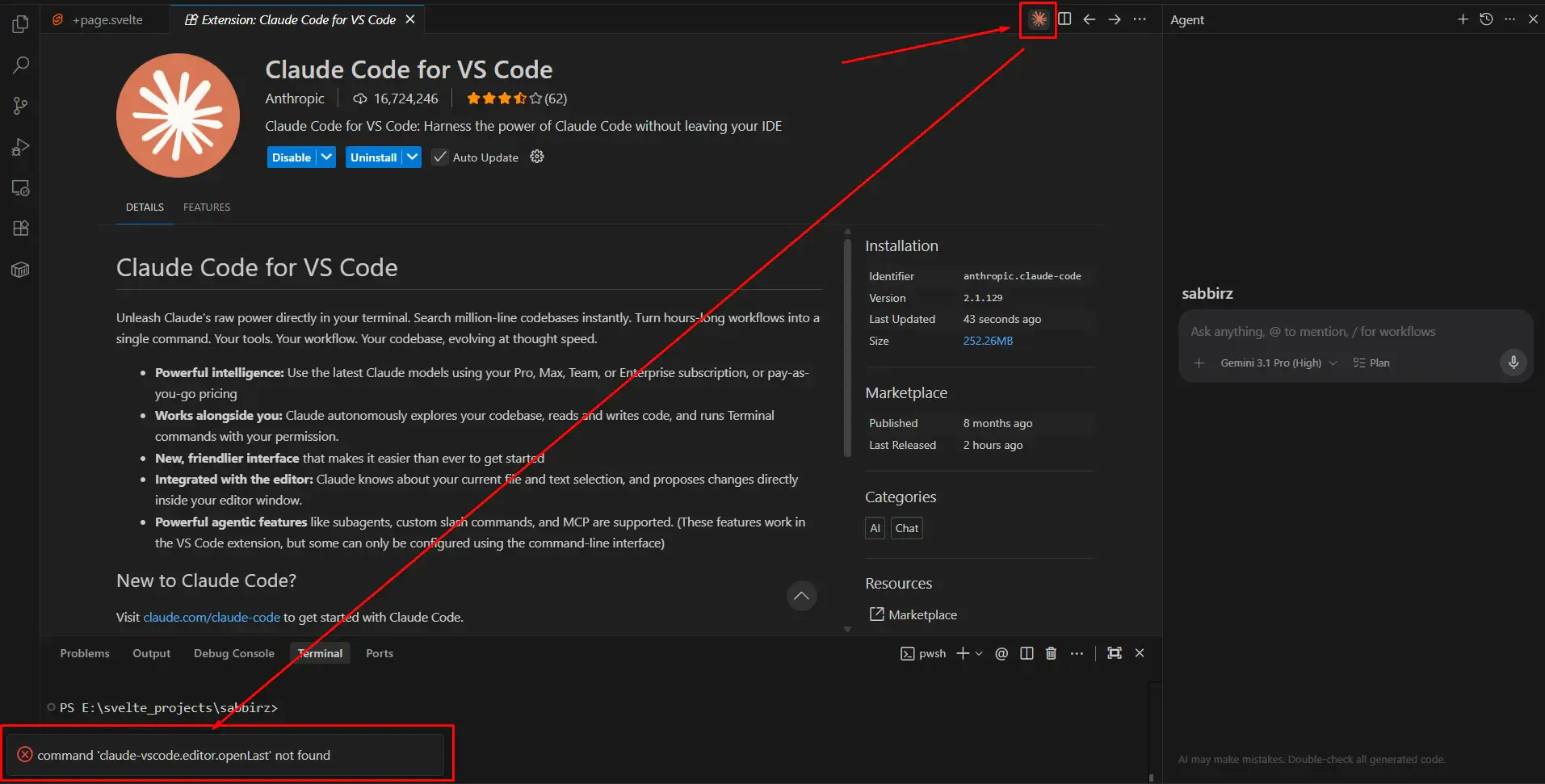
The error message reads:
command 'claude-vscode.editor.openLast' not found
The Claude panel on the right is completely blank — no login prompt, no history, nothing. The extension has failed to activate. Every Claude-related command in the Command Palette is also dead.
This is a version regression bug in the Claude Code VS Code extension by Anthropic.
In affected versions, the extension's command registration races against VS Code's UI restoration on startup. By the time you click the Claude icon, the commands haven't been registered yet — or in some cases, they never register at all. It's a timing issue during the extension activation lifecycle, which VS Code's extension API makes notoriously tricky to get right.
The bug was first widely reported around v2.1.51 and has resurfaced intermittently in later releases. The most reliable fix? Roll back to a known-good older version.
No terminal commands needed. This is all done inside VS Code's Extensions UI.
Press Ctrl+Shift+X to open the Extensions sidebar. Search for Claude and locate Claude Code for VS Code by Anthropic in your installed extensions list.
Right-click directly on the Claude Code for VS Code entry in the left sidebar list. A context menu will appear — click "Install Specific Version..."
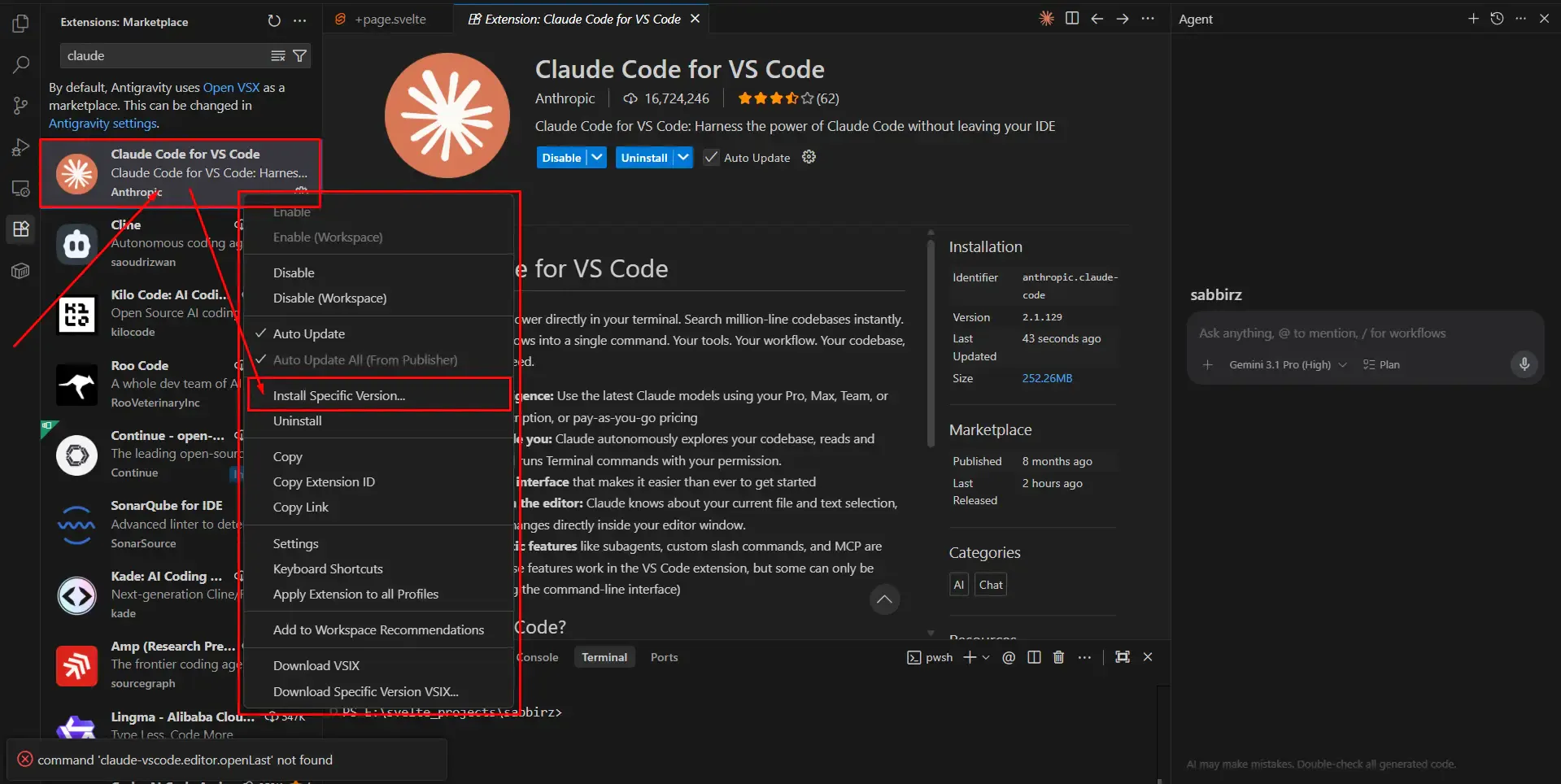
💡 Tip: Make sure you right-click on the extension in the sidebar list, not on the detail page — the context menu only appears from the list view.
A version picker dropdown will appear at the top of VS Code showing all available releases with their dates. Scroll past the recent versions and pick an older, stable one.
v2.1.128 (as shown in the screenshot below) is what worked in this case. If you don't see that exact version, go as far back as you need — versions in the v2.1.49–v2.1.128 range have been widely reported as stable by the community.
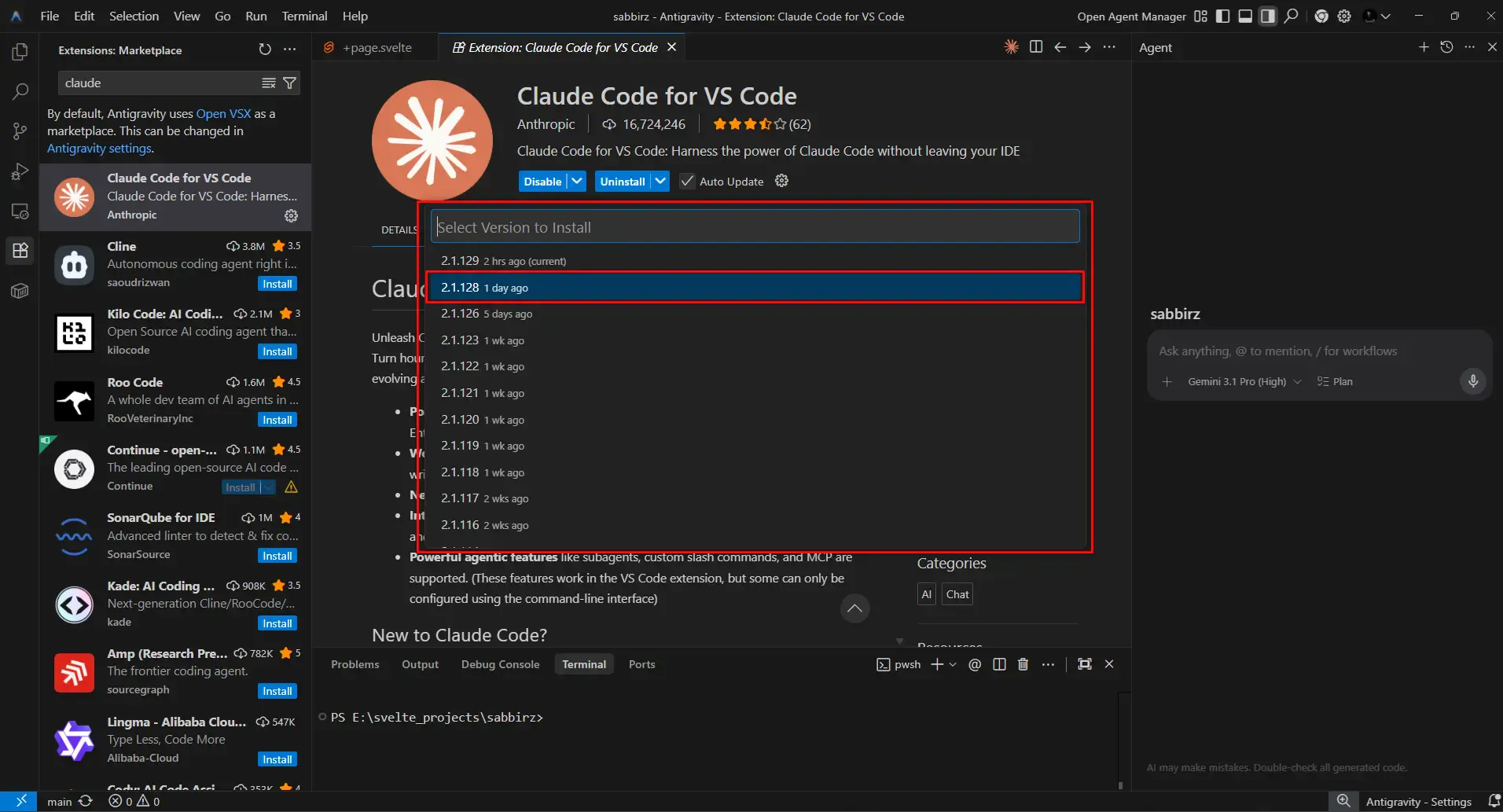
VS Code will download and install your selected version. You'll see "Installing" appear on the extension card — just give it a moment.

Once installation is complete, reload your VS Code window:
Ctrl+Shift+P → type Developer: Reload Window → hit Enter
The Claude panel will now load properly and present you with login options:
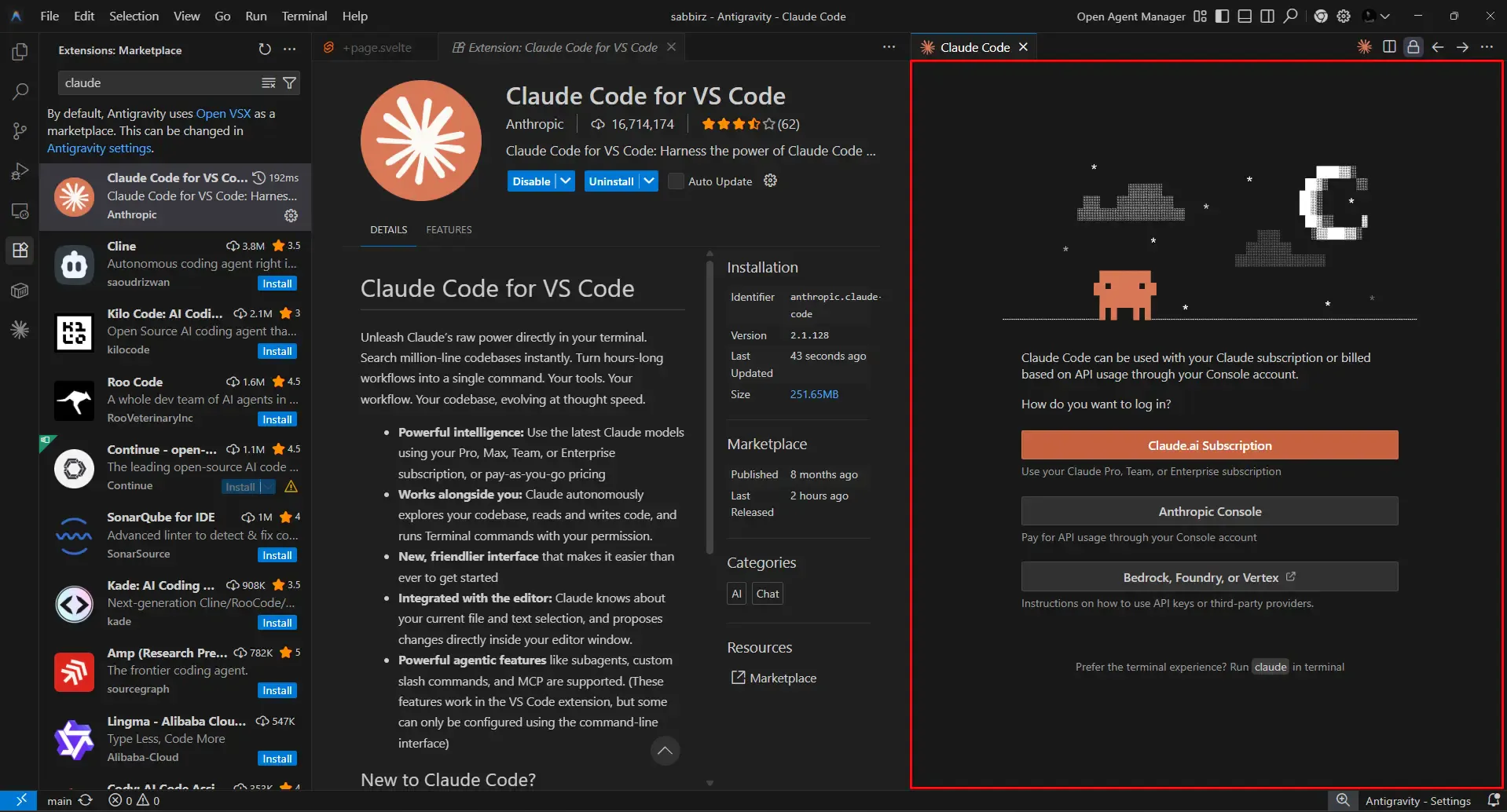
Pick Claude.ai Subscription if you have a paid plan, log in, and you're right back to coding with Claude. 🎉
Since this bug has a history of resurfacing in newer versions, you'll want to disable Auto Update for this extension until Anthropic ships a verified stable release.
On the extension detail page, uncheck the Auto Update toggle next to the Disable/Uninstall buttons. This stops VS Code from silently upgrading the extension and breaking your workflow again.
⚠️ Keep an eye on the VS Code Marketplace changelog for the extension. Once you see release notes mentioning a fix for command registration or activation failures, you can safely re-enable auto-updates and upgrade.
| Step | Action |
|---|---|
| 1 | Open Extensions panel (Ctrl+Shift+X) |
| 2 | Right-click Claude Code for VS Code → Install Specific Version |
| 3 | Select v2.1.128 or an older stable version |
| 4 | Wait for installation to complete |
| 5 | Reload window (Ctrl+Shift+P → Developer: Reload Window) |
| 6 | Disable Auto Update to prevent regression |
If the version rollback doesn't fix it, the extension's stored state may be corrupted. Try a clean reset:
Delete this folder, then reinstall the extension:
%APPDATA%\Code\User\globalStorage\anthropic.claude-code~/Library/Application Support/Code/User/globalStorage/anthropic.claude-code~/.config/Code/User/globalStorage/anthropic.claude-codeAfter deleting the folder, restart VS Code completely and reinstall the extension fresh from the VS Code Marketplace. This clears any cached state that might be interfering with activation.
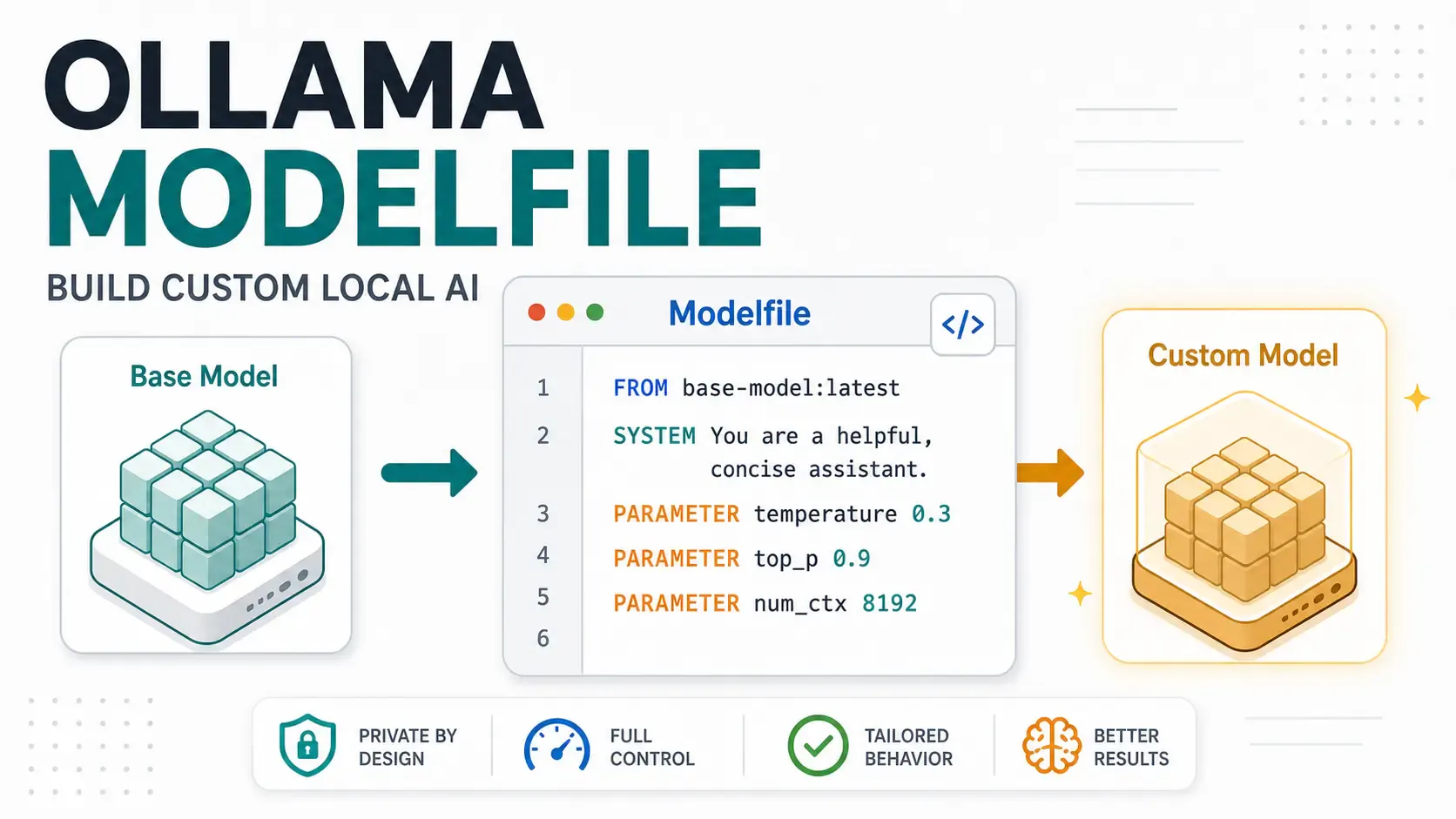
A hands-on Ollama Modelfile tutorial for developers building local AI assistants, support bots, code reviewers, and private app workflows.
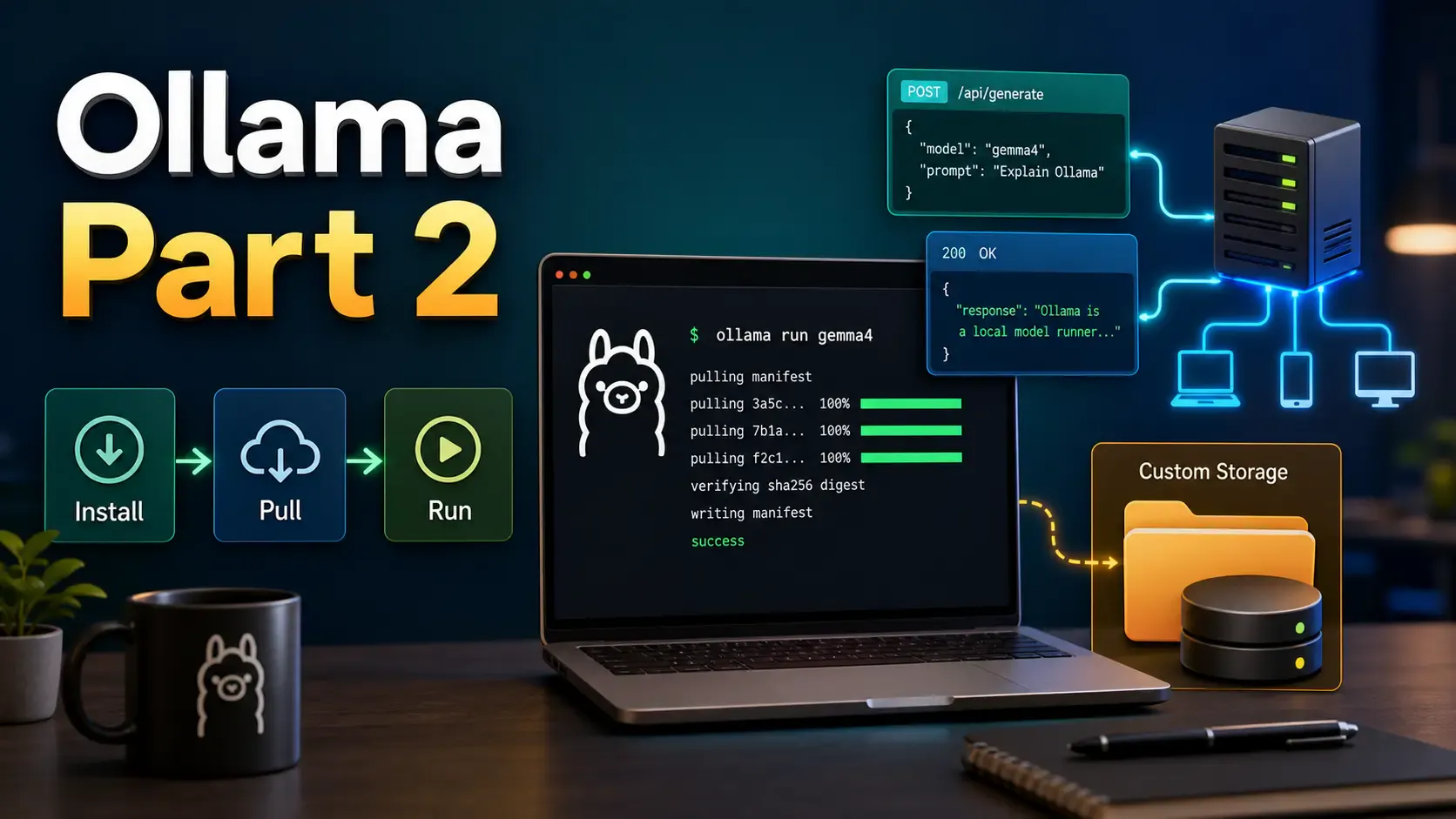
Learn how to install Ollama, run local models from CLI and UI, call the Ollama API, move model storage, and expose Ollama safely on a network.
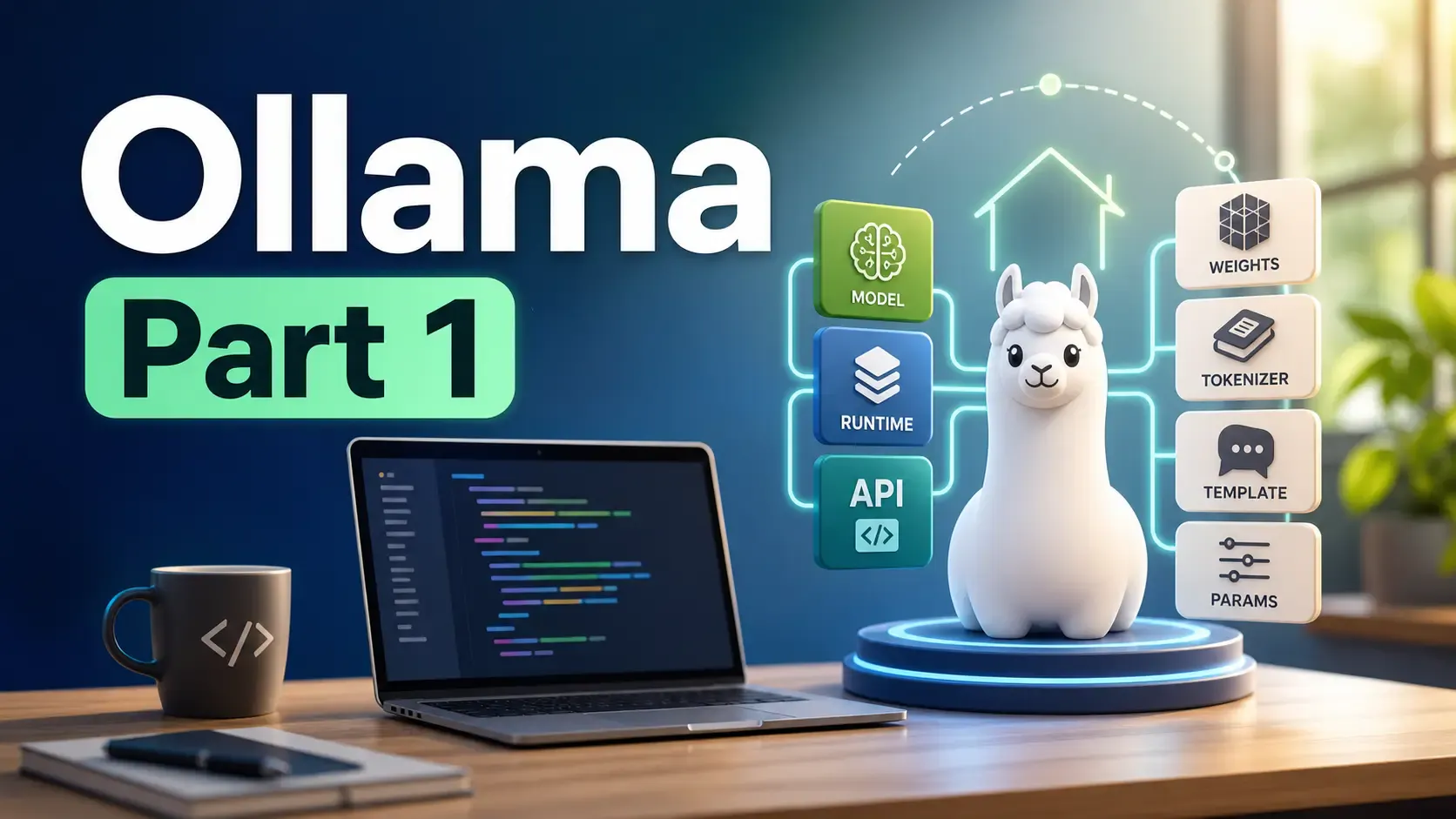
Learn what Ollama is, how it differs from Llama, how local AI models are packaged, and where Ollama fits in a developer workflow.