How to Sync VS Code Extensions in Remote Projects (SSH, WSL, Docker)
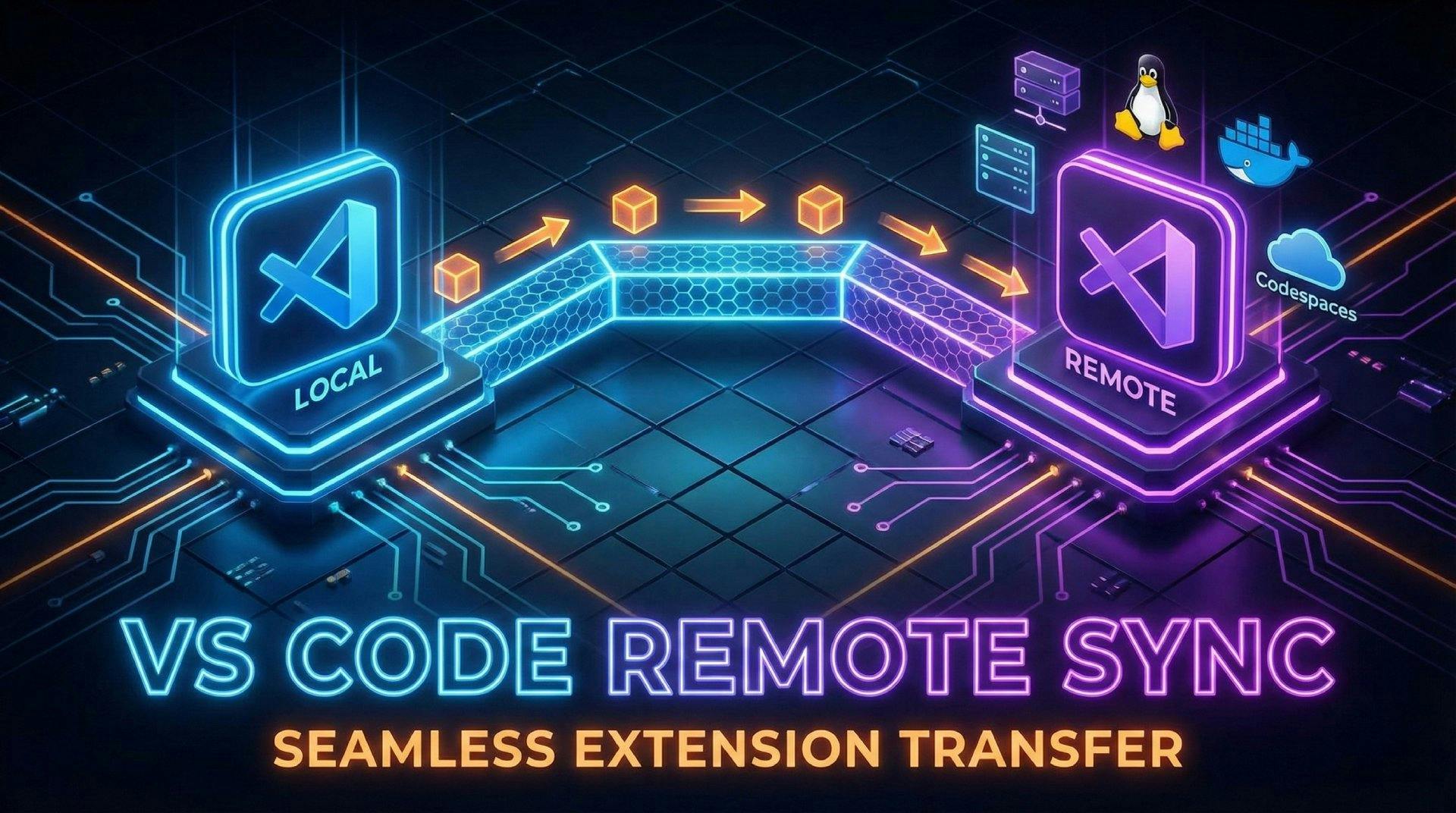
When you open a remote project in VS Code — whether through SSH, WSL, Docker, or Codespaces — it feels great… until you realize half your favorite extensions are missing. You know, the ones you already installed locally?
And then you go:
“Wait, I already installed Prettier, Python, and GitLens — why do I have to do it again?!”
That’s a common frustration, so let’s fix it once and for all.
If you just want the quick fix — here you go:
Export all your local extensions:
code --list-extensions > extensions.txt
Copy extensions.txt to your remote environment (or open it in Remote Explorer).
Install them all at once remotely:
cat extensions.txt | xargs -L 1 code --install-extension
That’s it! All your extensions will be cloned to the remote setup in one go.
When you open a folder through:
VS Code launches a different server instance inside that environment. That means it uses a separate set of extensions (specific to that environment), instead of reusing your local ones.
In short: 🖥️ Local VS Code = runs on your computer 🌐 Remote VS Code = runs inside that environment (SSH, WSL, etc.)
So yes — you need to install your favorite tools there too. But we can make that painless.
This is by far the cleanest way to keep all your extensions (and settings) in sync across all environments.
Open Command Palette:
Ctrl + Shift + P
Run:
Settings Sync: Turn On
Sign in using your Microsoft or GitHub account.
Check Extensions, Settings, and Keybindings to sync.
Now, when you connect to any remote environment (SSH, WSL, Codespace), VS Code will automatically install and sync your extensions.
⚡ Pro Tip: You can view what’s being synced at any time using
Settings Sync: Show Synced Data.
Pros
Cons
If you like control — or you’re in an offline setup — this method is your friend.
code --list-extensions > extensions.txt
This saves something like:
ms-python.python
esbenp.prettier-vscode
eamodio.gitlens
If using SSH:
scp extensions.txt user@remote-server:~/
cat extensions.txt | xargs -L 1 code --install-extension
💡 If you use VS Code Remote Explorer, just open a terminal inside the remote environment and run this there.
Pros
extensions.txt in your repo).Cons
You can make VS Code automatically suggest extensions for a project — super useful if you share the workspace with teammates.
Just add a file inside your project at:
.vscode/extensions.json
{
  "recommendations": [
    "ms-python.python",
    "ms-azuretools.vscode-docker",
    "esbenp.prettier-vscode"
  ]
}
Next time someone (including you) opens that project, VS Code will say:
“This workspace has extension recommendations.”
You click “Install All” — done.
Pros
Cons
If you frequently switch between environments, make a simple sync script:
# sync-extensions.sh

echo "Exporting current extensions..."
code --list-extensions > ~/.vscode/extensions.txt

echo "Installing extensions in remote..."
cat ~/.vscode/extensions.txt | xargs -L 1 code --install-extension
Then just run:
bash sync-extensions.sh
💡 You can even add this to your dotfiles or post-SSH setup script.
Your extensions define how productive you are in VS Code — losing them every time you open a remote project is just not acceptable.
So whether you:
you now know exactly how to make your remote VS Code behave like home.
Bonus Tip: You can also run
code --install-extension <extension-id>
for a single extension anytime. To find its ID, open the extension’s details in VS Code Marketplace — it’s usually in the format
publisher.extensionName (like ms-python.python).
A complete, practical guide to deploying Frappe Framework in production using frappe_docker, Nginx as a reverse proxy, and Let's Encrypt SSL — no bench start required.
A step-by-step guide to calling Frappe's REST API from React/Next.js, handling session and API-key auth correctly, and wiring up live updates with Socket.IO

Learn what Ollama is, how it differs from Llama, how local AI models are packaged, and where Ollama fits in a developer workflow.