Stop Using bench update Blindly — Here's How to Update One Frappe App Safely
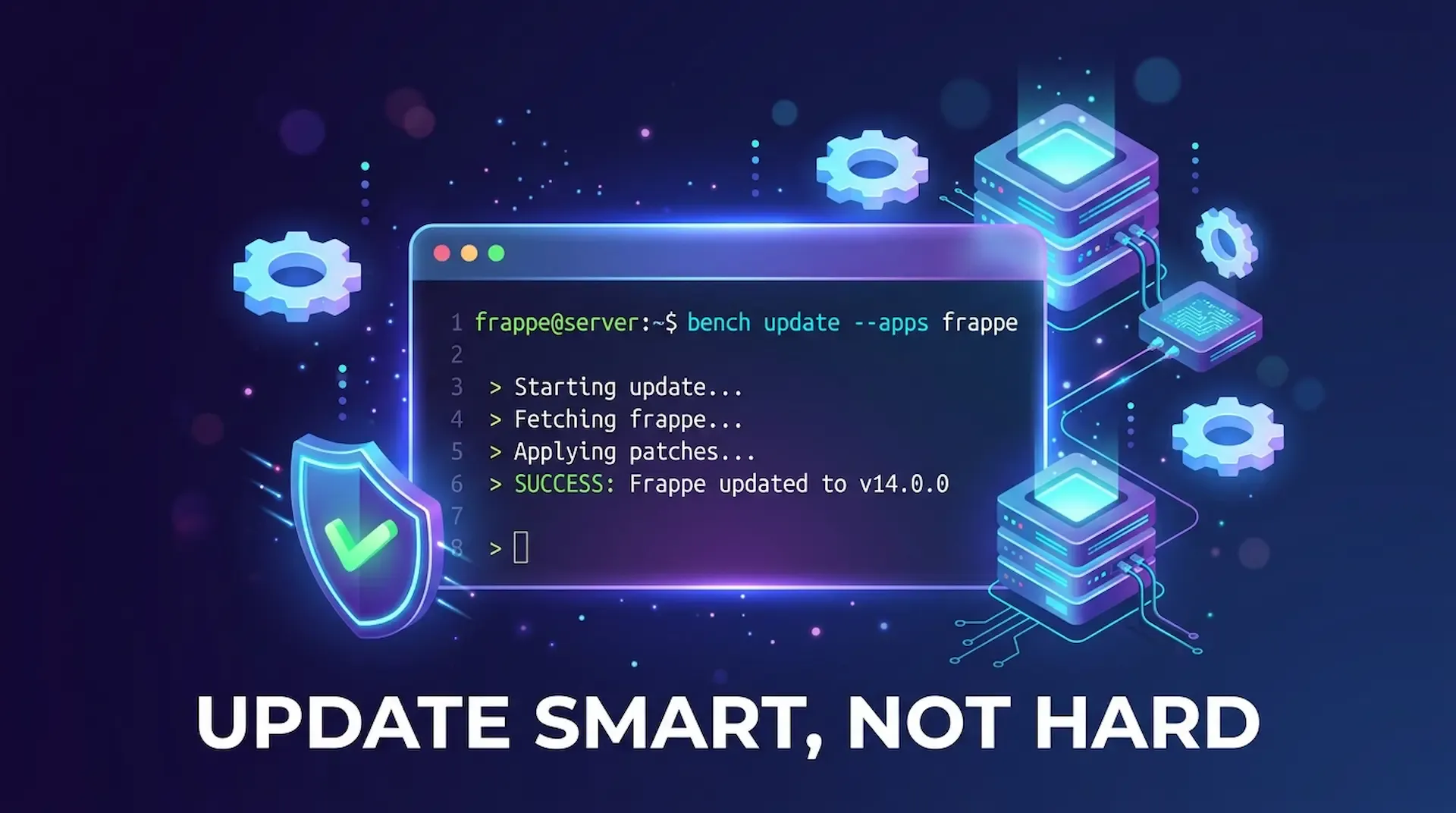
Stop risking your entire bench. Learn the surgical way to update a single Frappe app while keeping everything else untouched.
⏱️ Time to Complete: 10–15 minutes
--apps flagBefore you dive in, make sure you have:
~/frappe-bench or a custom path like ~/f16[!NOTE] As of June 2026, Frappe v16 is the latest stable release (shipped January 2026). v15 remains supported through end-of-2027. The commands in this guide work on both versions — just swap the branch name where needed (e.g.,
version-15→version-16).
bench updateLet's be honest — running a bare bench update feels like handing the keys to your server and hoping for the best.
Here's what happens by default:
bench update
This single command updates every app in your bench — Frappe, ERPNext, HRMS, and yes, your custom app too. If your custom app has uncommitted changes, is pinned to a specific branch, or has local patches — you're in for a rough day.
The good news? You don't have to update everything. Bench gives you a scalpel instead of a sledgehammer. 🔪
The Frappe Bench CLI supports an --apps flag that targets a specific app:
cd ~/frappe-bench
bench update --apps frappe
That's it. 🎉
Replace frappe with the name of any installed app:
# Update only ERPNext
bench update --apps erpnext

# Update only your custom app
bench update --apps my_custom_app
When you run bench update --apps frappe, Bench will:
sites/{site-name}/private/backups/)git pullbench migrate) to apply schema changesYour other apps? Completely untouched. No surprise merge conflicts in your custom code. No broken patches. Peace of mind. 🧘
[!TIP] You can combine the
--appsflag with other options for even more control:bench update --apps frappe --no-backup # Skip auto-backup (not recommended for prod) bench update --apps frappe --reset # Hard-reset to remote branch (discards local changes!) bench update --apps frappe --pull # Only pull code, skip migrations & build
Sometimes you want to drive stick, not automatic. Here's the fully manual approach that gives you control over every single step.
bench --site your-site.local backup --with-files --compress
This creates a compressed backup of your database and uploaded files. Even though bench update creates its own backup, having a manual one gives you a safety net you fully control.
[!IMPORTANT] Backups are stored in
~/frappe-bench/sites/your-site.local/private/backups/. For production sites, also consider copying backups to an off-server location (S3, Google Cloud Storage, etc.).
cd ~/frappe-bench/apps/frappe
git fetch upstream
git pull upstream version-16   # Use version-15 if you're on v15
[!NOTE] The default remote is usually
upstreamfor official Frappe apps. Rungit remote -vto verify your remote names.
cd ~/frappe-bench
bench setup requirements --apps frappe
This ensures any new Python or Node.js dependencies required by the updated app are installed.
bench --site your-site.local migrate
This applies any new patches, schema changes, or data migrations that came with the update.
bench build --app frappe
This recompiles the JavaScript and CSS bundles for that specific app only — much faster than a full bench build.
bench restart
If you're using Supervisor or systemd in production, this ensures your workers pick up the new code.
Even targeted updates can hit snags. Here are the four most common blockers and exactly how to resolve each one.
Error you'll see:
error: failed to remove directory `.../site-packages/pip/_vendor/urllib3/util/__pycache__`:
Permission denied (os error 13)
🤔 Why it happens:
The virtual environment files (~/frappe-bench/env/) are owned by a different user — typically root — so your current user can't modify them. This is common when the bench was initially set up with sudo.
🛠️ Fix:
# Take ownership of the virtual environment
sudo chown -R $USER:$USER ~/frappe-bench/env

# Re-install dependencies
bench setup requirements

# Finish the update
bench --site your-site.local migrate
bench build --app frappe
[!TIP] To prevent this from happening again, avoid using
sudowhen running bench commands. If your bench was set up by root, consider transferring full ownership:sudo chown -R $USER:$USER ~/frappe-bench
What you see in the browser:
Updating
The system is being updated. Please refresh again after a few moments.
Status: 503
🤔 Why it happens:
When bench update runs, it puts your site into maintenance mode — a locked state that blocks user access during migrations. If the update is interrupted midway (by an error, a network drop, or an SSH timeout), the site stays locked. Bench forgot to unlock the door. 🚪🔒
🛠️ Fix:
# Disable maintenance mode
bench --site your-site.local set-config maintenance_mode 0

# Resume the background job scheduler
bench --site your-site.local set-config pause_scheduler 0

# Restart all services
bench restart
Refresh your browser — the 503 should be gone and your site should be back to normal. ✅
[!WARNING] If the update was interrupted during a migration, your database might be in a partially migrated state. After clearing maintenance mode, run
bench --site your-site.local migrateto complete any pending patches.
shallow_clone WarningWarning you'll see:
WARN: shallow_clone is set in your bench config.
However without passing the --reset flag, your repositories will be unshallowed.
🤔 Why it happens:
Your bench was initially set up with shallow_clone = true in the config. Shallow cloning downloads only the latest commit history (saving disk space and time during setup). When you update without the --reset flag, bench unshallows the repository — downloading the full git history — which is slower and triggers this warning.
🛠️ Fix (suppress the warning permanently):
bench config set-common-config -c shallow_clone false
This tells bench to treat all repos as full clones going forward. The next update will proceed without the warning.
[!NOTE] If disk space is a concern (e.g., on small VPS instances), you can keep
shallow_clone = trueand simply pass the--resetflag during updates instead:bench update --apps frappe --resetJust remember that
--resetdiscards any local changes in the app's repo.
Error you'll see:
error: Your local changes to the following files would be overwritten by merge
🤔 Why it happens: Someone made direct edits to the app's source files — modifying core Frappe or ERPNext code instead of using Frappe's built-in customization tools (Custom Fields, Client Scripts, Server Scripts, etc.).
🛠️ Option A — Discard local changes (if you don't need them):
cd ~/frappe-bench/apps/frappe
git reset --hard upstream/version-16
[!CAUTION]
git reset --hardis destructive and irreversible. Only use this if you're 100% sure you don't need the local changes. Consider backing up the files first.
🛠️ Option B — Stash and reapply (if you want to keep changes):
cd ~/frappe-bench/apps/frappe
git stash                         # Save your changes aside
git pull upstream version-16      # Pull the latest code
git stash pop                     # Reapply your changes on top
If there are conflicts after git stash pop, Git will mark the conflicting files. Open them, resolve the conflicts manually, then:
git add .
git commit -m "fix: resolve merge conflicts after update"
Before and after any update, always verify your site's configuration to ensure everything is in order:
# Quick check using bench
bench --site your-site.local show-config
Or inspect the raw config file:
cat ~/frappe-bench/sites/your-site.local/site_config.json
Key values to look for:
| Config Key | Expected Value | What It Means |
|---|---|---|
maintenance_mode | 0 | Site is live and accessible |
pause_scheduler | 0 | Background jobs are running |
If either is set to 1, your site is still in maintenance mode — use the fix from Blocker 2 above. 👆
Here's something that trips up a lot of people: the Bench CLI tool and the Frappe framework app are two completely different things.
apps/frappe/)To update the Bench CLI:
pip install --upgrade frappe-bench
Bench will also nudge you when a newer version is available at the end of an update run:
INFO: A newer version of bench is available: 5.29.0 → 5.29.1
[!TIP] Run
bench versionto check your current Bench CLI version at any time.
Bookmark this table — you'll thank yourself later. 🔖
| Task | Command |
|---|---|
| 🔄 Update only Frappe | bench update --apps frappe |
| 🔄 Update only ERPNext | bench update --apps erpnext |
| 🔄 Update any specific app | bench update --apps app_name |
| 🗄️ Backup before update | bench --site site.local backup --with-files --compress |
| 🔓 Fix 503 / maintenance mode | bench --site site.local set-config maintenance_mode 0 |
| ▶️ Resume scheduler | bench --site site.local set-config pause_scheduler 0 |
| 🔑 Fix permission errors | sudo chown -R $USER:$USER ~/frappe-bench/env |
| 📦 Re-install dependencies | bench setup requirements |
| 🔄 Run migrations manually | bench --site site.local migrate |
| 🏗️ Rebuild assets for one app | bench build --app frappe |
| 🔎 Check site config | bench --site site.local show-config |
| ⬆️ Update Bench CLI | pip install --upgrade frappe-bench |
| 🔁 Restart services | bench restart |
| 📌 Check Bench version | bench version |
🗄️ Always backup before updating — even though bench does it automatically. A manual backup gives you a second safety net. Store critical backups off-server.
🧪 Test on staging first — never update production without testing on a staging or development environment first. Use bench new-site to spin up a test site quickly.
🚫 Don't edit core app source files directly — use Custom Fields, Server Scripts, Client Scripts, and Custom Apps instead. These survive updates cleanly.
🎯 One app at a time is always safer than updating everything at once. If something breaks, you know exactly where to look.
📖 Read the release notes — before updating, check the Frappe release notes and ERPNext release notes for breaking changes and deprecations.
🔔 Monitor after updating — keep an eye on your Error Log (/app/error-log) and background job status (/app/background_jobs) for the first few hours after an update.
Happy updating! 🚀 If this guide saved you from a broken bench, share it with your team — they'll thank you on the next update day.
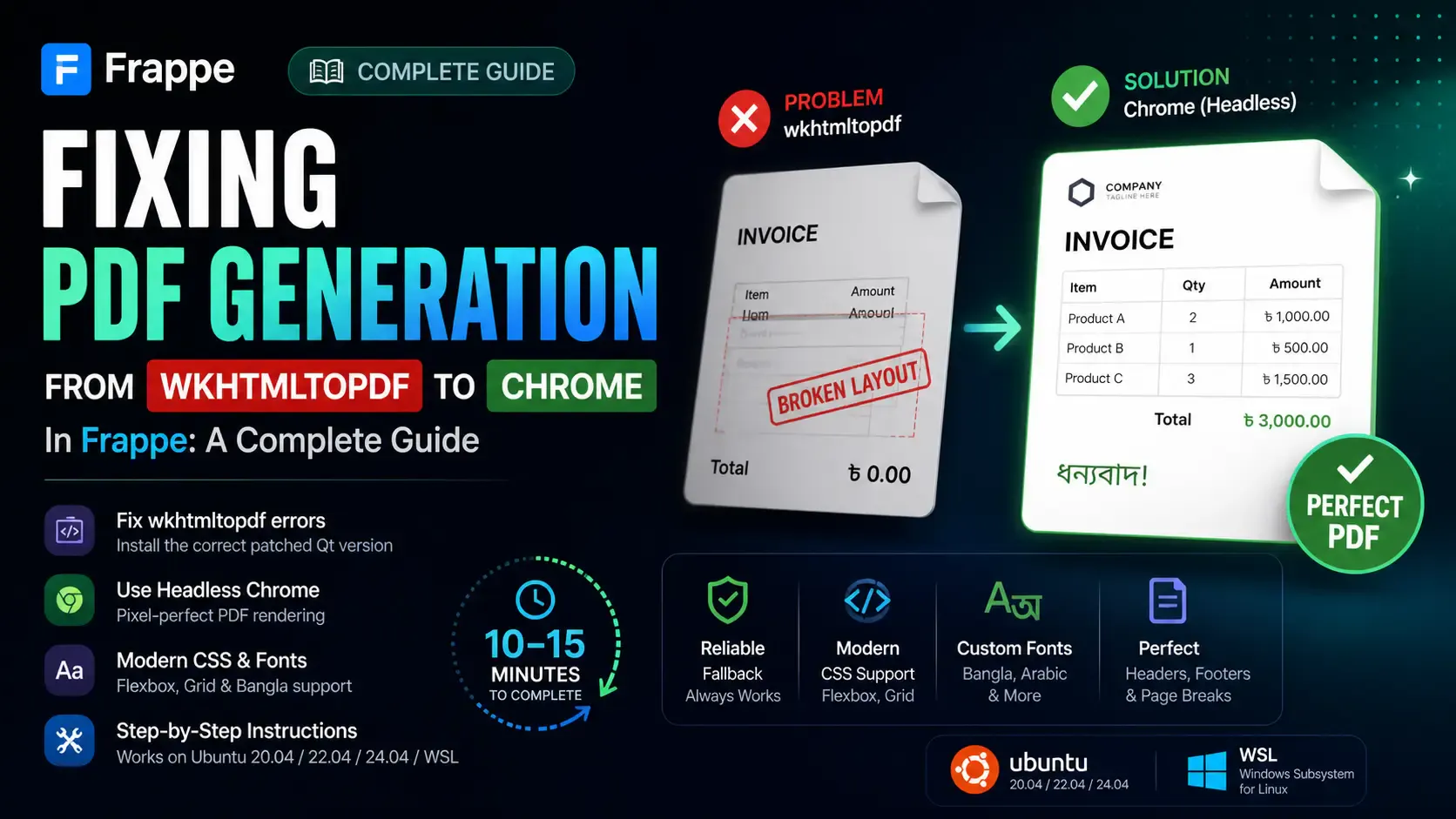
Getting the "Invalid wkhtmltopdf version" error in Frappe or ERPNext? Learn how to fix broken PDFs, install the patched Qt version, and switch to headless Chrome for pixel-perfect modern CSS and custom font support.
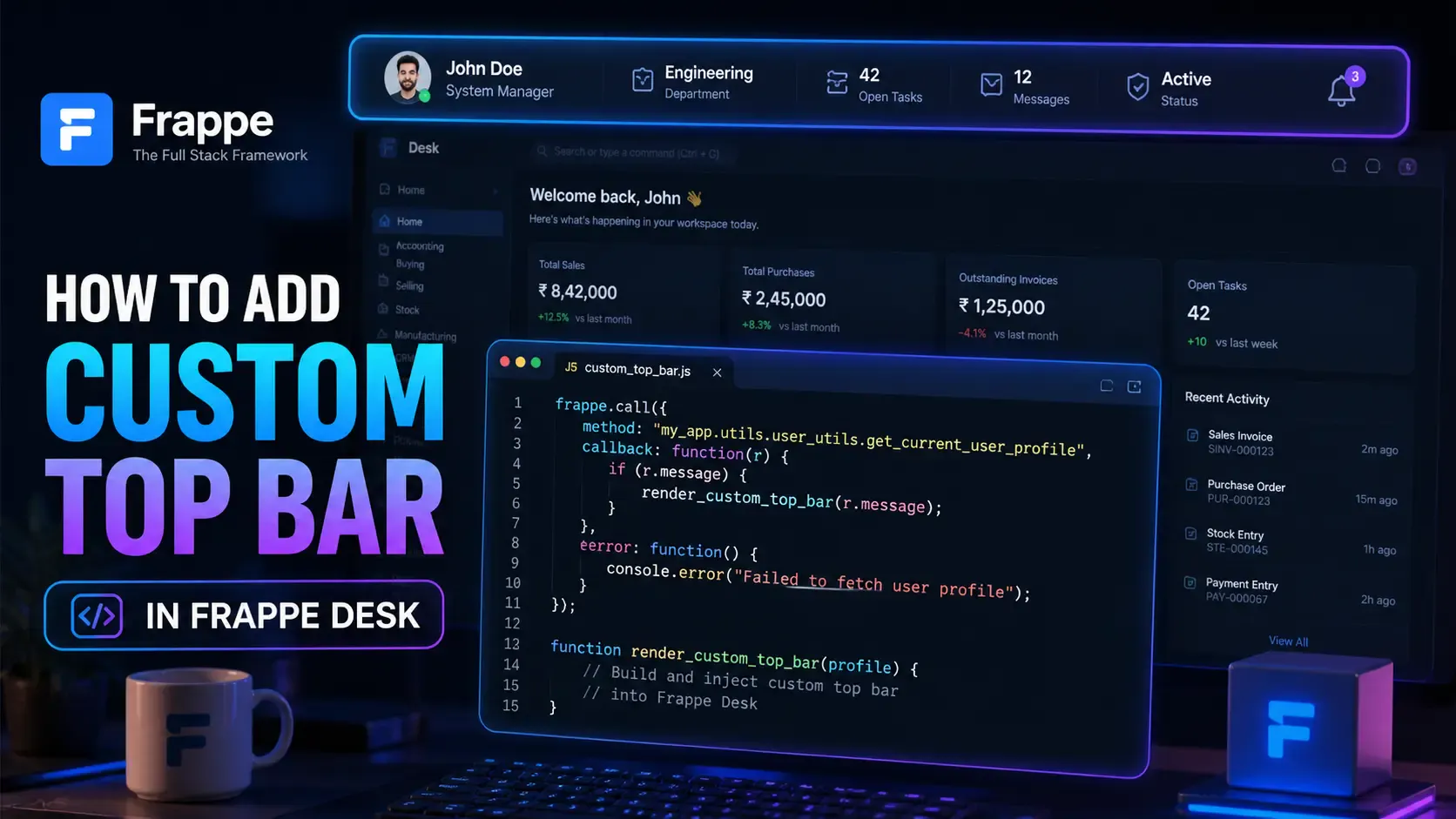
Learn how to enhance your Frappe Desk UI by adding a custom, dynamic top bar. Follow this beginner-friendly, step-by-step tutorial to display user profiles, statuses, and more!

Learn how to build custom, role-based dashboards in Frappe v16 using Workspaces, Custom HTML blocks, and Python APIs. Perfect for ERPNext developers