Best GPUs for Running Ollama Locally in 2026 (Budget to Enterprise)
The single most common question after installing Ollama is: "What GPU do I actually need?" This guide answers that with real VRAM numbers, not marketing fluff, so you can buy the right hardware the first time.
About 10 minutes to read and find your tier.
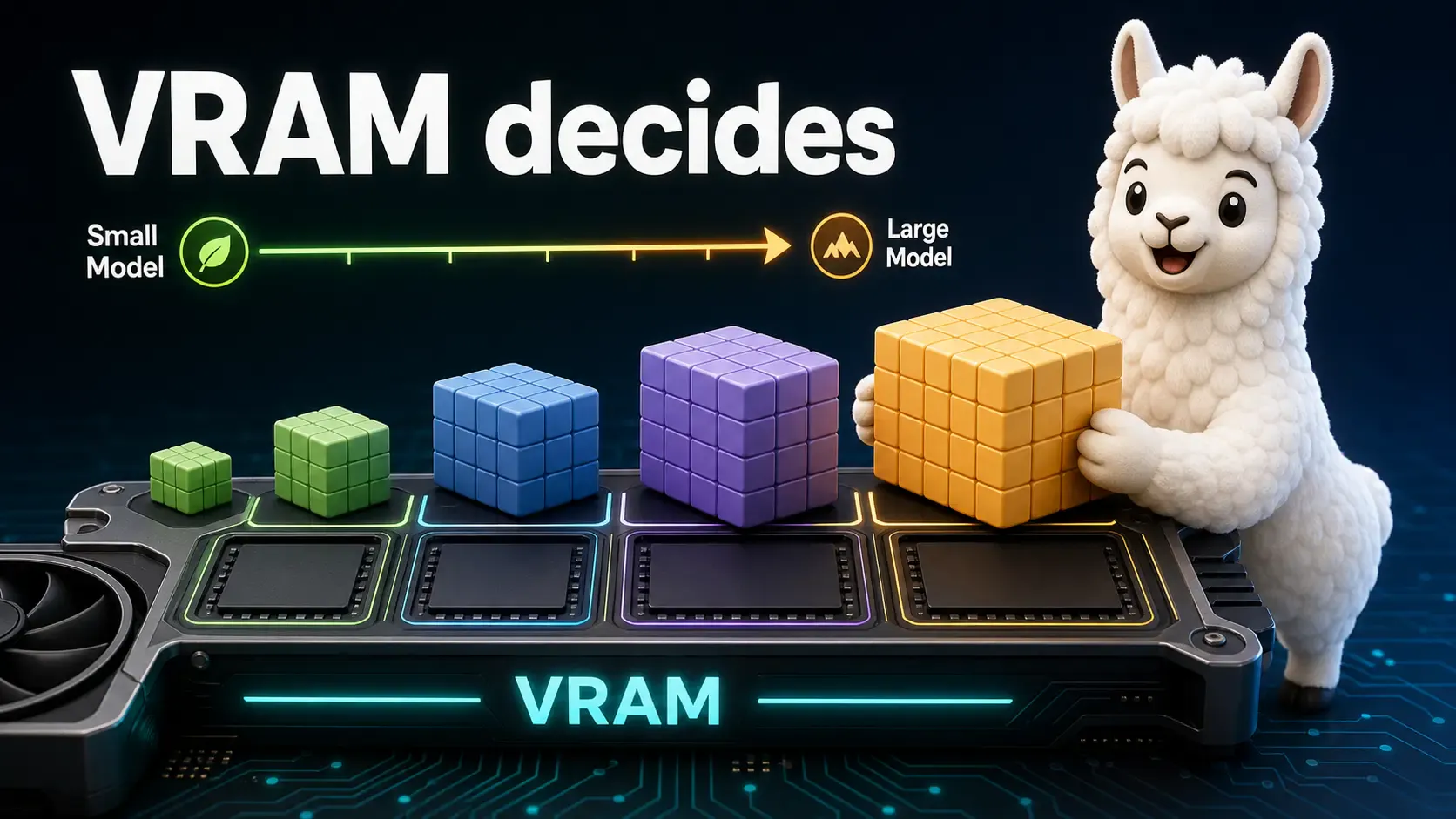
Before buying anything, understand this one rule:
VRAM needed ≈ Model size (in billions of parameters) × bytes-per-parameter, then add ~10-20% overhead for context.
Ollama models are usually quantized, which changes the math:
| Quantization | Bytes per parameter | Notes |
|---|---|---|
| Q4 (4-bit) | ~0.5 bytes | Most common default, great quality-to-size ratio |
| Q8 (8-bit) | ~1 byte | Higher quality, double the VRAM |
| FP16 (16-bit) | ~2 bytes | Near full quality, heaviest |
| Model size | Approx. VRAM needed | Fits on |
|---|---|---|
| 3B | ~3 GB | Almost any modern GPU, even laptops |
| 7B–8B | ~5–6 GB | Entry-level GPUs |
| 13B–14B | ~9–10 GB | Mid-range GPUs |
| 34B | ~20 GB | High-end consumer GPUs |
| 70B | ~40 GB | Enterprise / multi-GPU setups |
[!TIP] Run
ollama listafter pulling a model, and checkollama show <model>for its exact size on disk — that's a good proxy for VRAM needs.
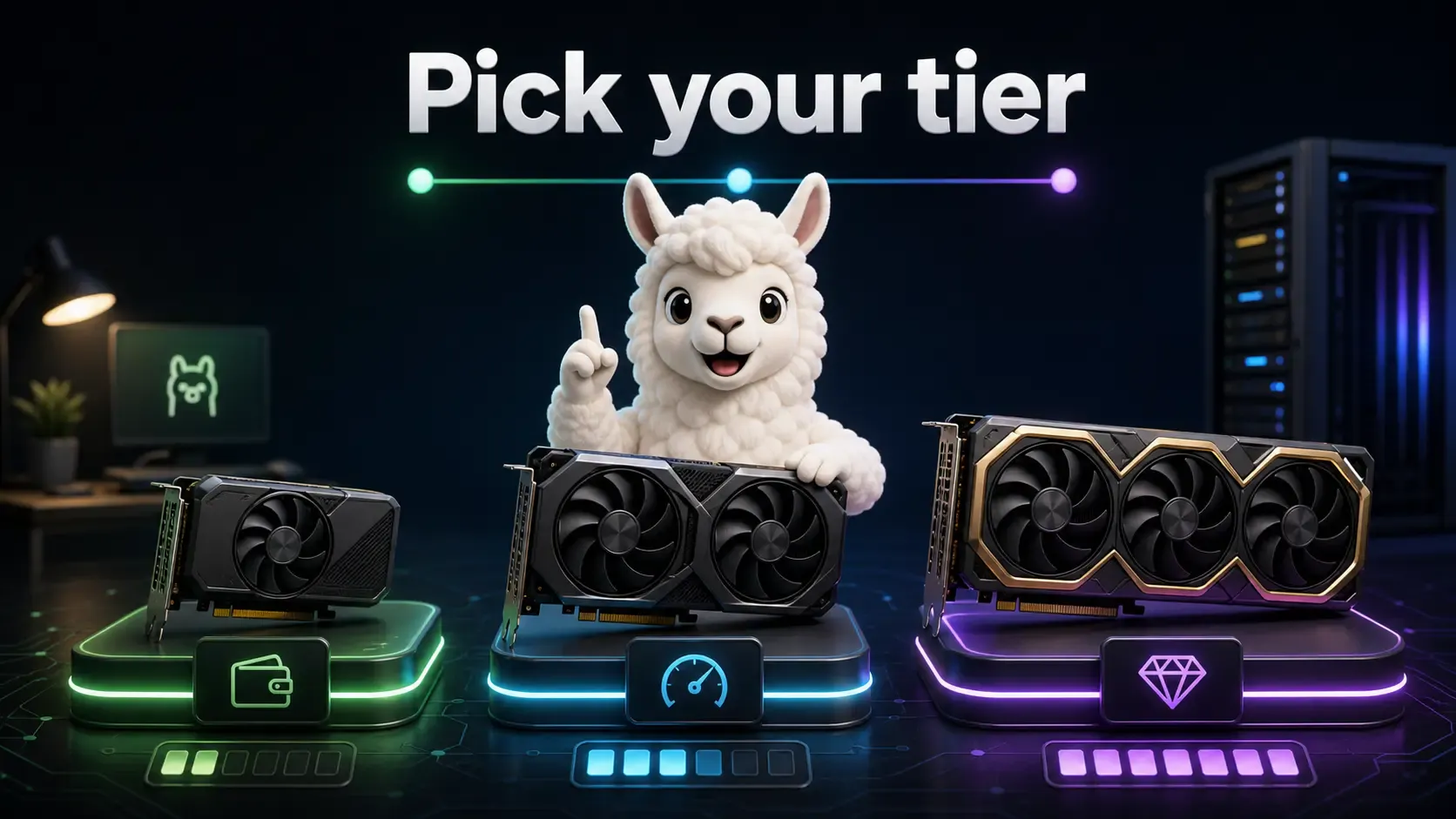
If you're just starting out or want to run smaller models (3B–8B), you don't need an expensive card.
Good for: chatbots, coding assistants on small models, learning Ollama, RAG prototypes.
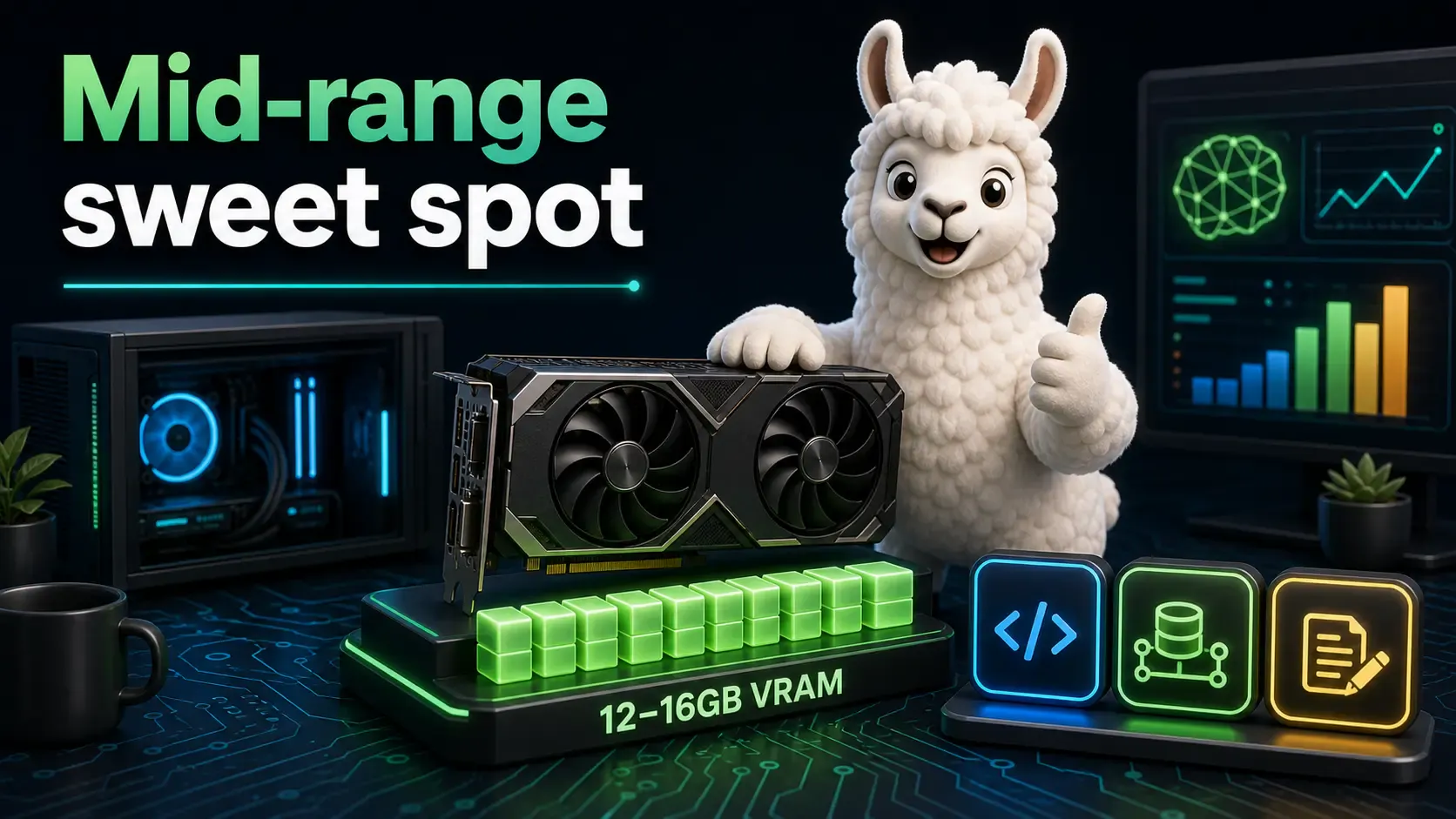
This tier comfortably runs 13B–14B models and handles 7B–8B models with room to spare for larger context windows.
Good for: daily coding assistant use, internal tools, small-team RAG pipelines, content generation.
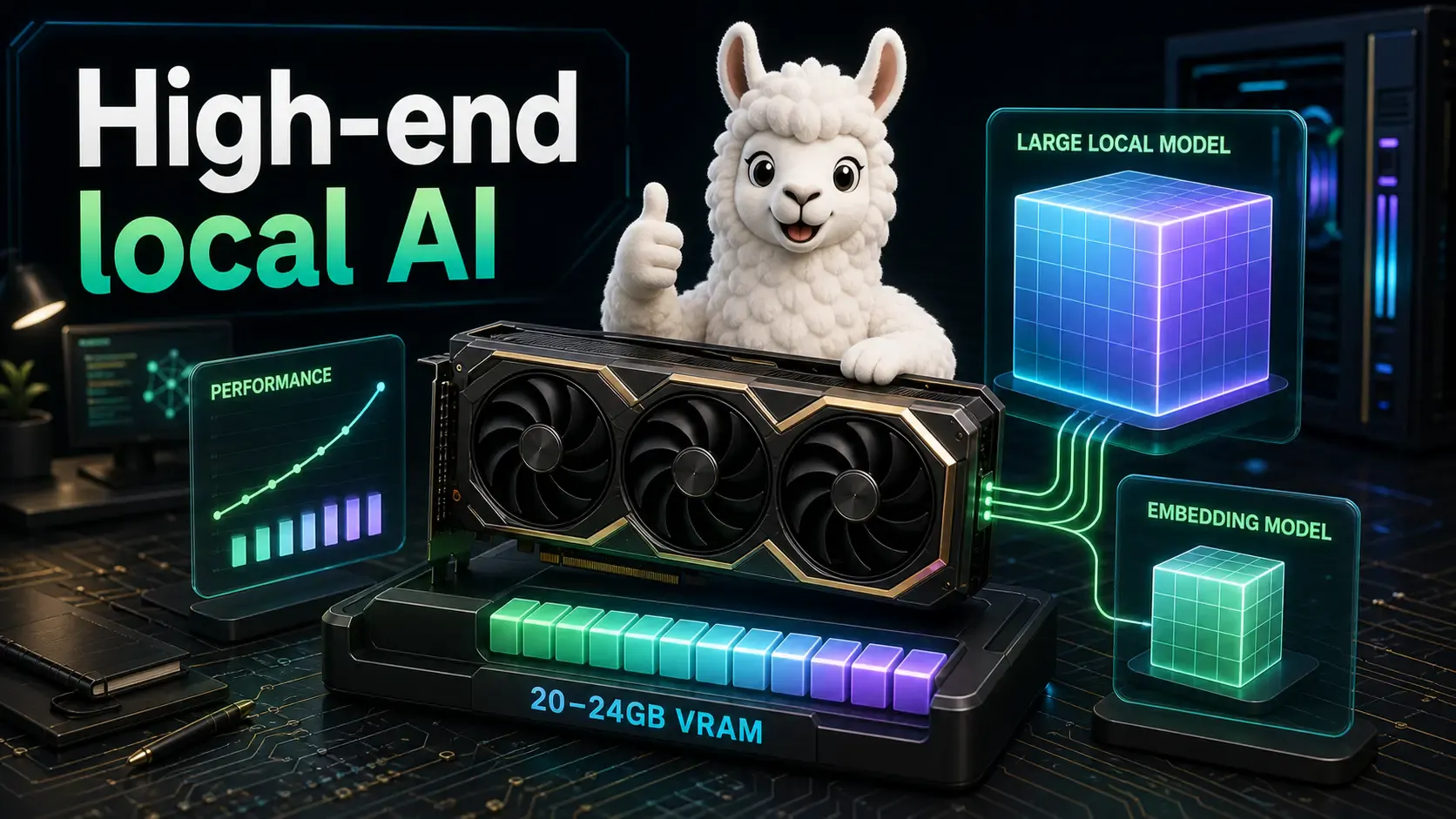
This is where 34B-class models become usable, and 13B models run with plenty of headroom for long context windows and multiple concurrent requests.
Good for: power users, small startups self-hosting AI features, serious RAG and agent workloads.
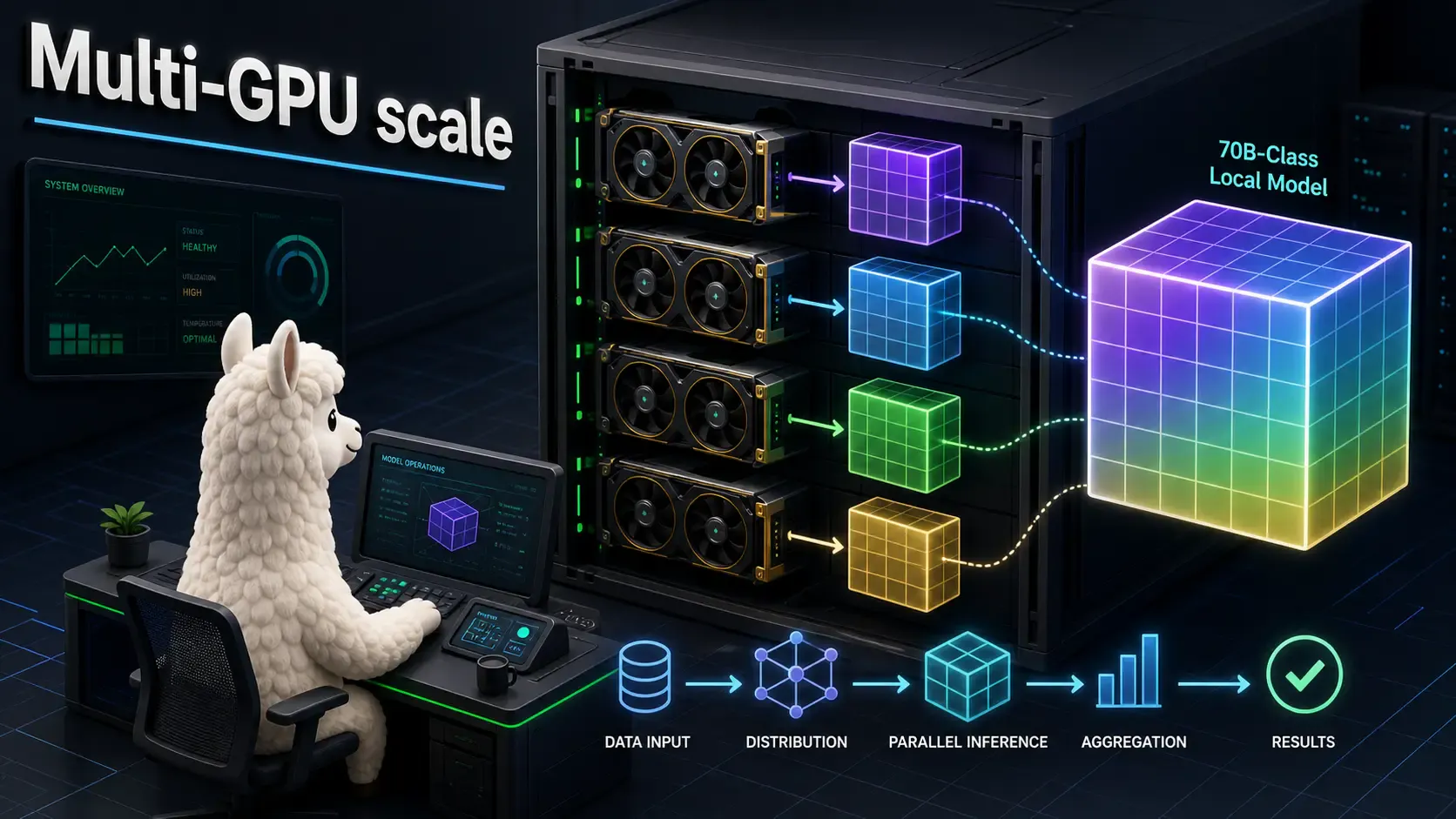
To run 70B-class models at good quality, you generally need:
Good for: companies replacing OpenAI API calls at scale, teams that need flagship-quality local models for compliance reasons.
[!NOTE] If you're at this tier, also read Ollama vs OpenAI API: Cost, Privacy, and Performance Compared to confirm the hardware investment actually pays off for your traffic volume.
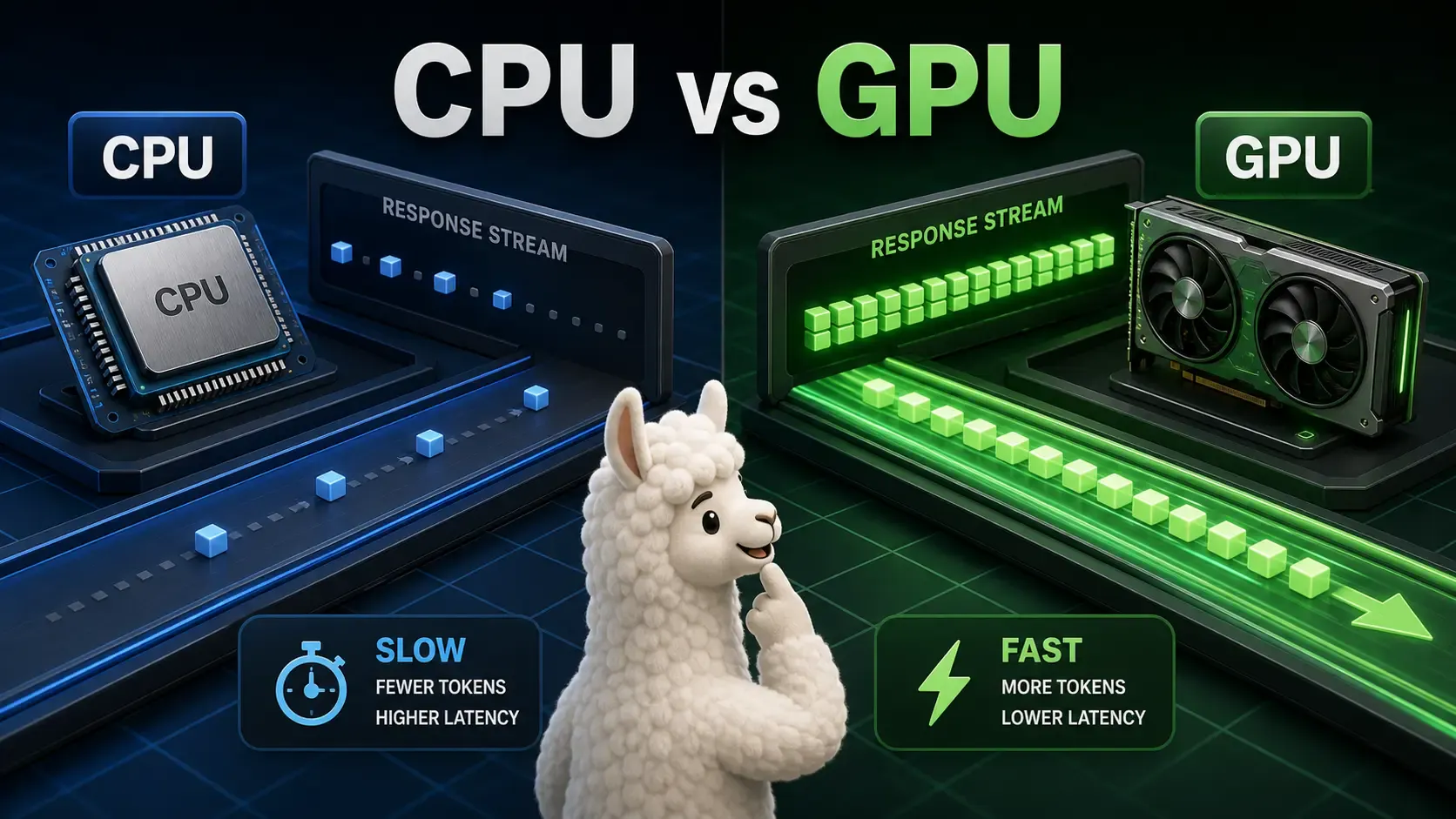
Not always. Ollama runs fine on CPU-only machines for small models (1B–3B) — just expect noticeably slower generation (think seconds per word instead of words per second).
If you're only experimenting or building a low-traffic side project, a modern laptop CPU with 16GB+ RAM can run small models acceptably. Check your current setup before buying anything:
ollama run llama3.2:3b "Say hello in five languages."
If the response feels too slow for your use case, that's your signal to invest in a GPU.
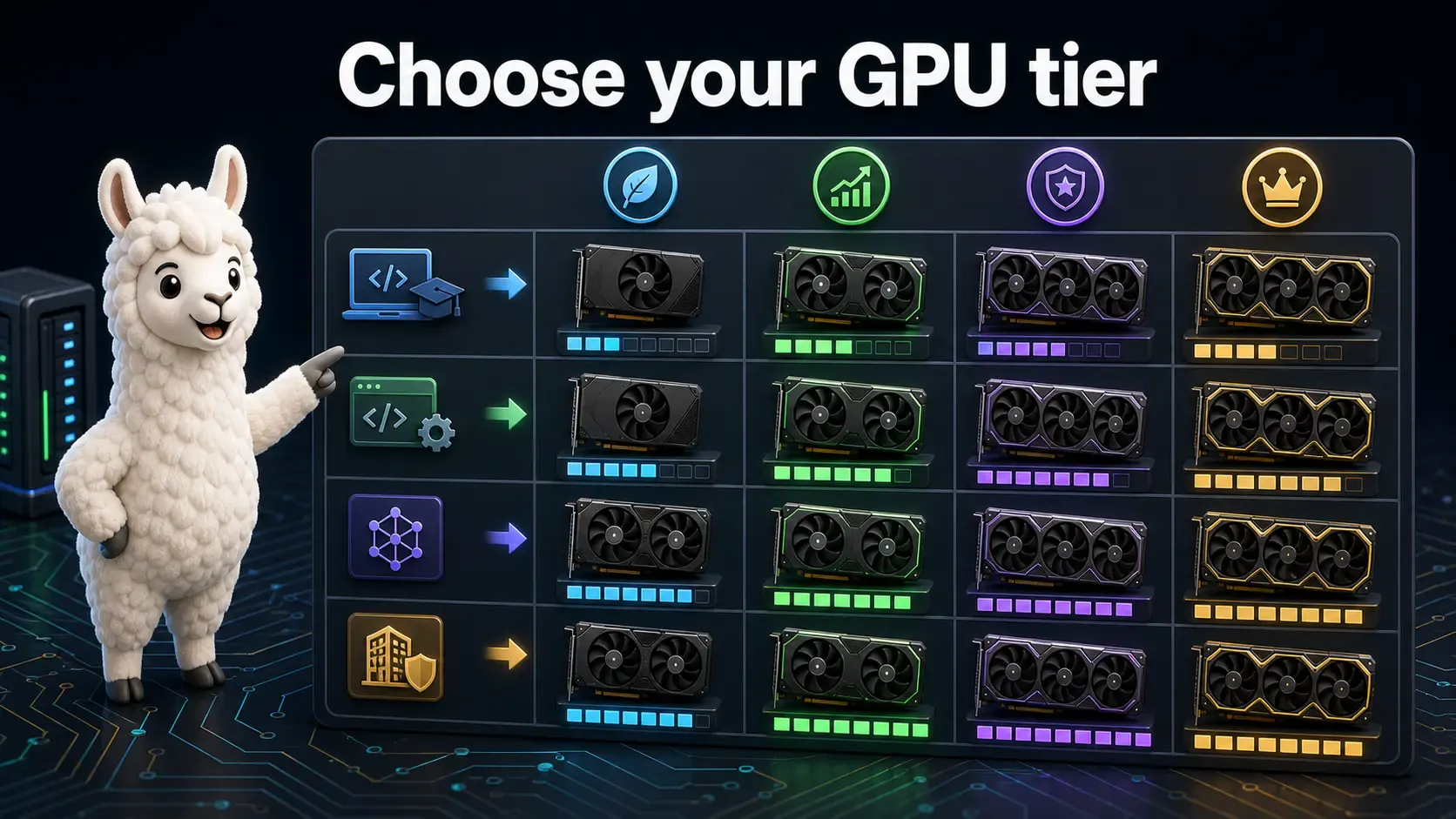
| Your goal | Recommended tier | VRAM target |
|---|---|---|
| Learning / hobby projects | Budget | 8GB+ |
| Daily coding assistant, small RAG | Mid-range | 12–16GB |
| Production app, larger models | High-end | 20–24GB |
| Replacing OpenAI API at scale | Enterprise | 40GB+ |
Don't buy more GPU than your current models need. Start with the smallest tier that runs your target model comfortably, get real usage data, and upgrade only when you hit a wall. VRAM headroom matters more than raw speed — running out of VRAM means the model won't load at all, while a slightly slower card just means a few extra seconds per response.
Build a private AI assistant for your own files using Ollama, LangChain, Qdrant, local embeddings, and retrieval-augmented generation.
Compare Ollama, LM Studio, llama.cpp, and vLLM to choose the best local AI tool for development, desktop testing, control, or production serving.
A beginner-friendly guide to securing Ollama for LAN, remote, and team access without exposing your local AI server directly