Build a Private RAG App with Ollama, LangChain, and Qdrant
RAG lets your AI app answer from your own documents. In this guide, we will build the beginner-friendly mental model for a private RAG app using Ollama, LangChain, and Qdrant.
Around 25-40 minutes for a basic local version.
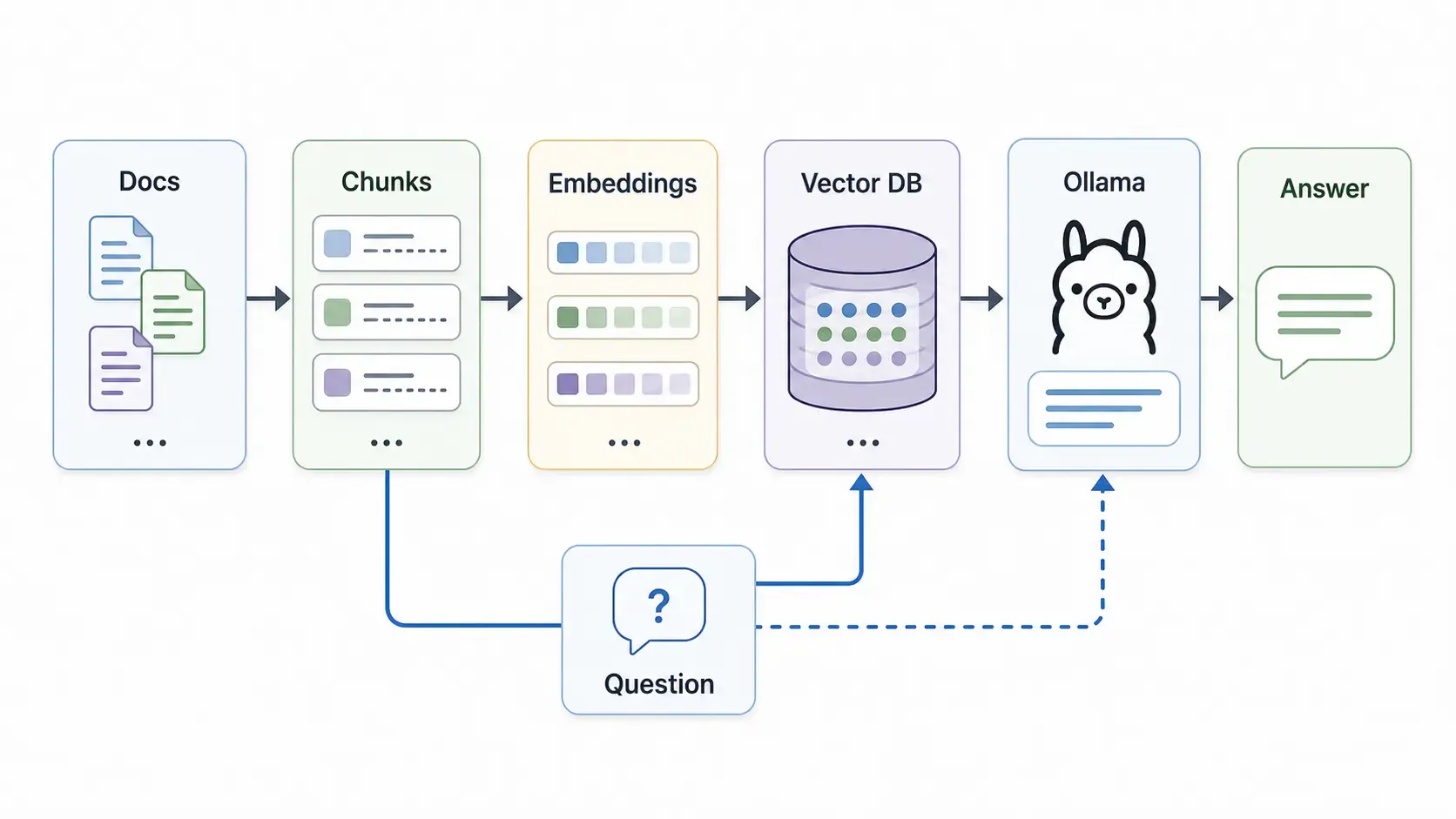
RAG means Retrieval-Augmented Generation.
Normal chat:
User question -> LLM -> Answer
RAG chat:
User question -> Search your documents -> Send relevant context to LLM -> Answer
That means the model does not need to memorize everything. It retrieves the right document chunks first, then writes an answer using that context.
This is useful for:
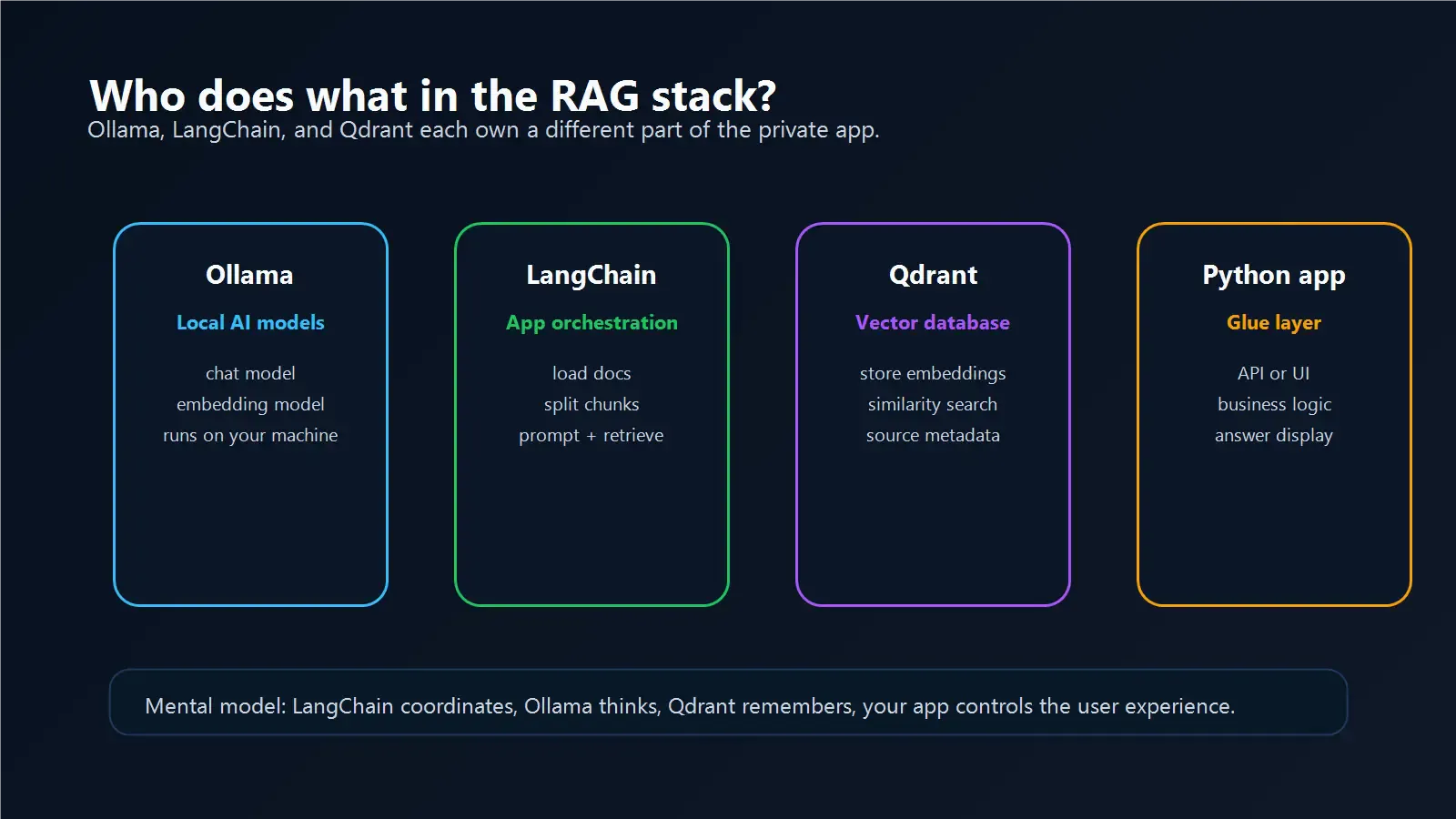
For this beginner setup:
You could also use Chroma, LlamaIndex, Milvus, or Weaviate. Qdrant is a good pick because it is production-friendly but still beginner approachable.
Install Ollama:
Pull a chat model:
ollama pull gemma4
Pull an embedding model:
ollama pull embeddinggemma
Install Python packages:
pip install langchain langchain-ollama langchain-qdrant qdrant-client
Start Qdrant with Docker:
docker run -p 6333:6333 qdrant/qdrant
If you do not have Docker yet, install it from docker.com.
Create a folder:
docs/
Add a few .txt or .md files first. Start simple before adding PDFs, HTML, or large messy documents.
Example:
docs/company-faq.md
docs/api-notes.md
docs/install-guide.md
Beginner mistake: adding 10,000 files on day one. Start with five small documents and verify your pipeline works.
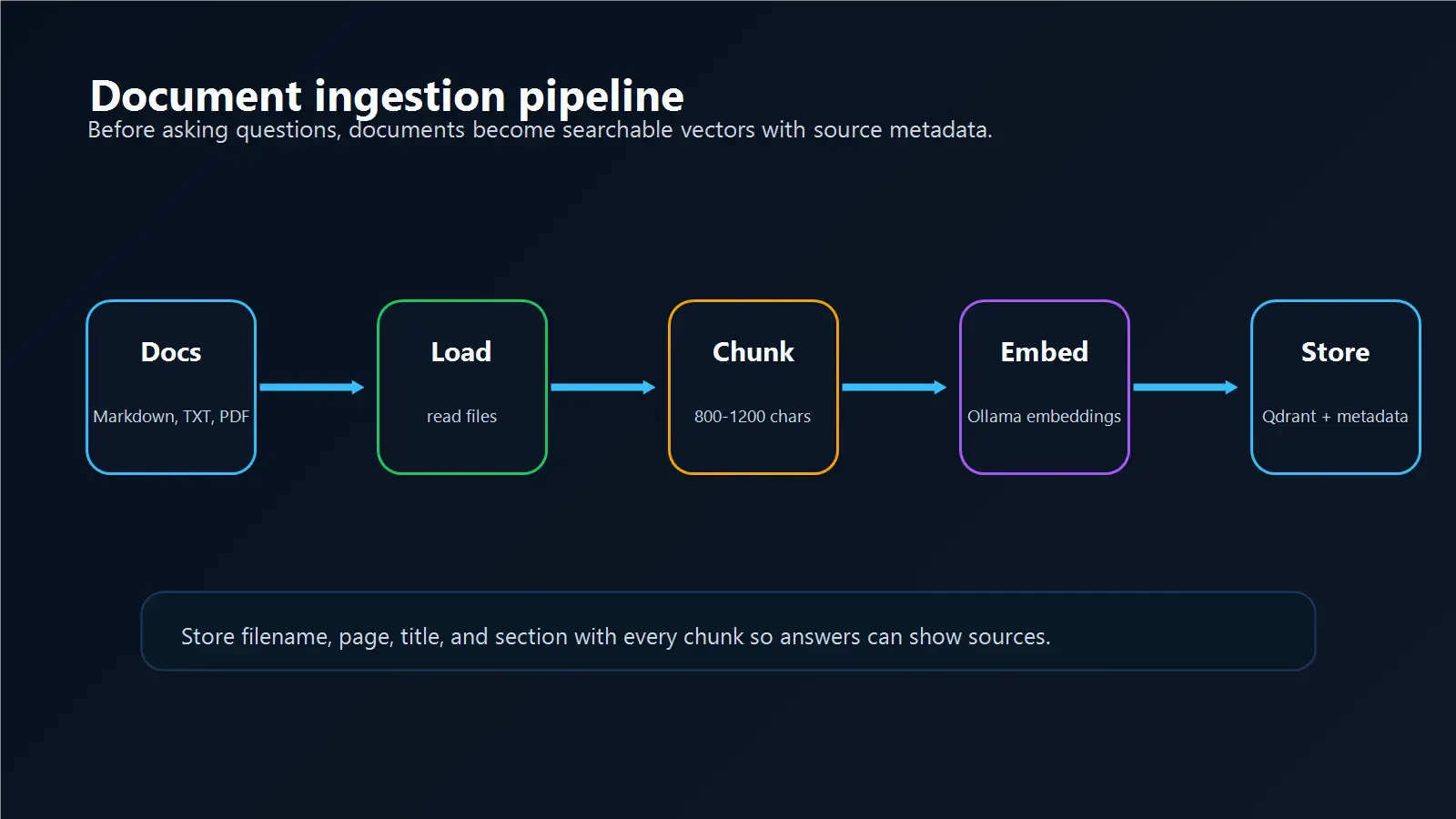
LLMs cannot read every document all the time. RAG splits files into smaller pieces called chunks.
Good chunks are:
Common beginner setting:
chunk_size: 800-1200 characters
chunk_overlap: 100-200 characters
You can tune this later.
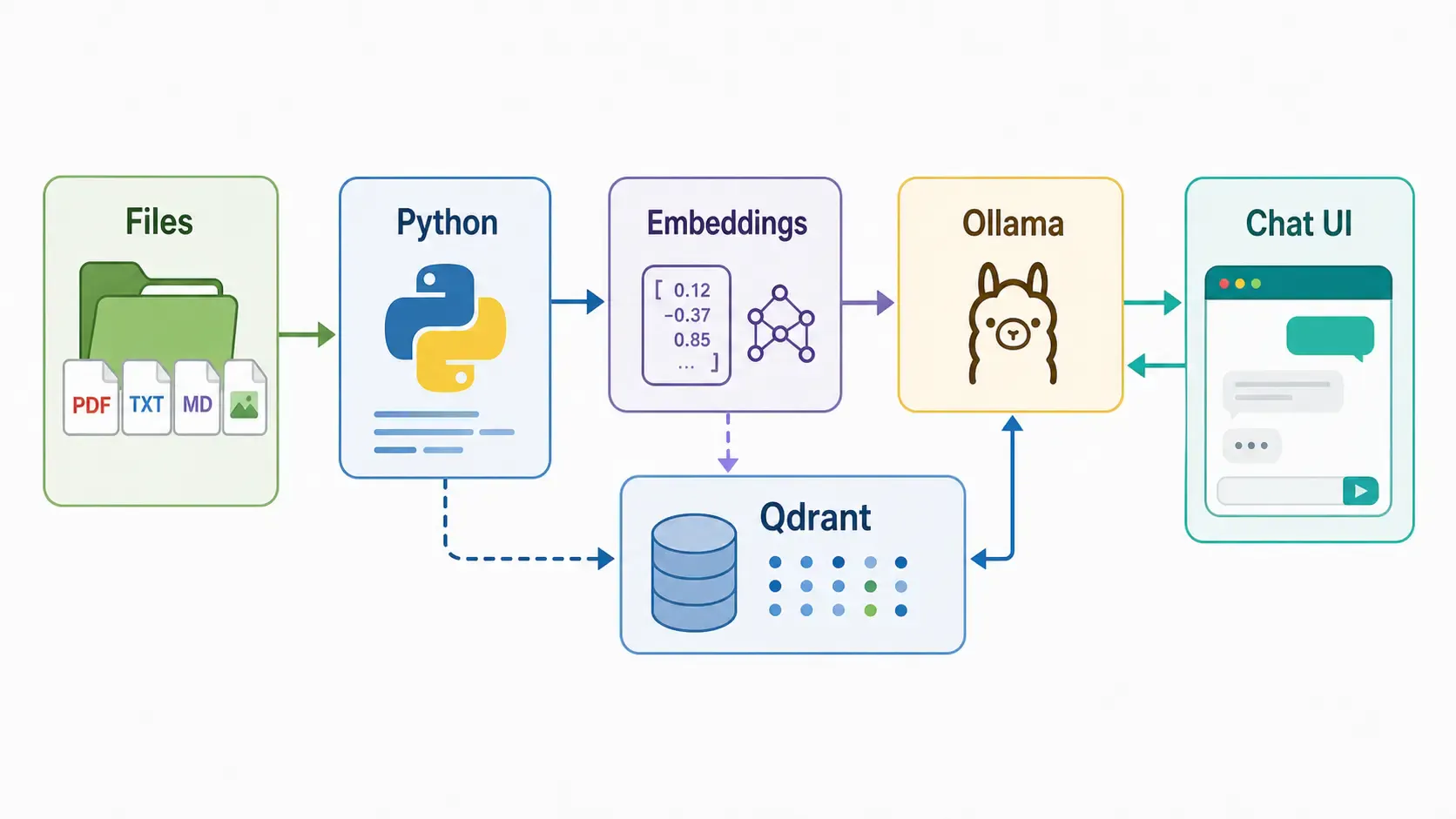
An embedding is a numeric representation of text meaning.
When you embed a document chunk, it becomes searchable by similarity. That means a user can ask:
How do I reset my API key?
And your app can find a chunk that says:
To rotate credentials, open the dashboard and generate a new API token.
Even though the wording is different, the meaning is close.
With Ollama, embeddings can be generated locally using an embedding model.
Qdrant stores:
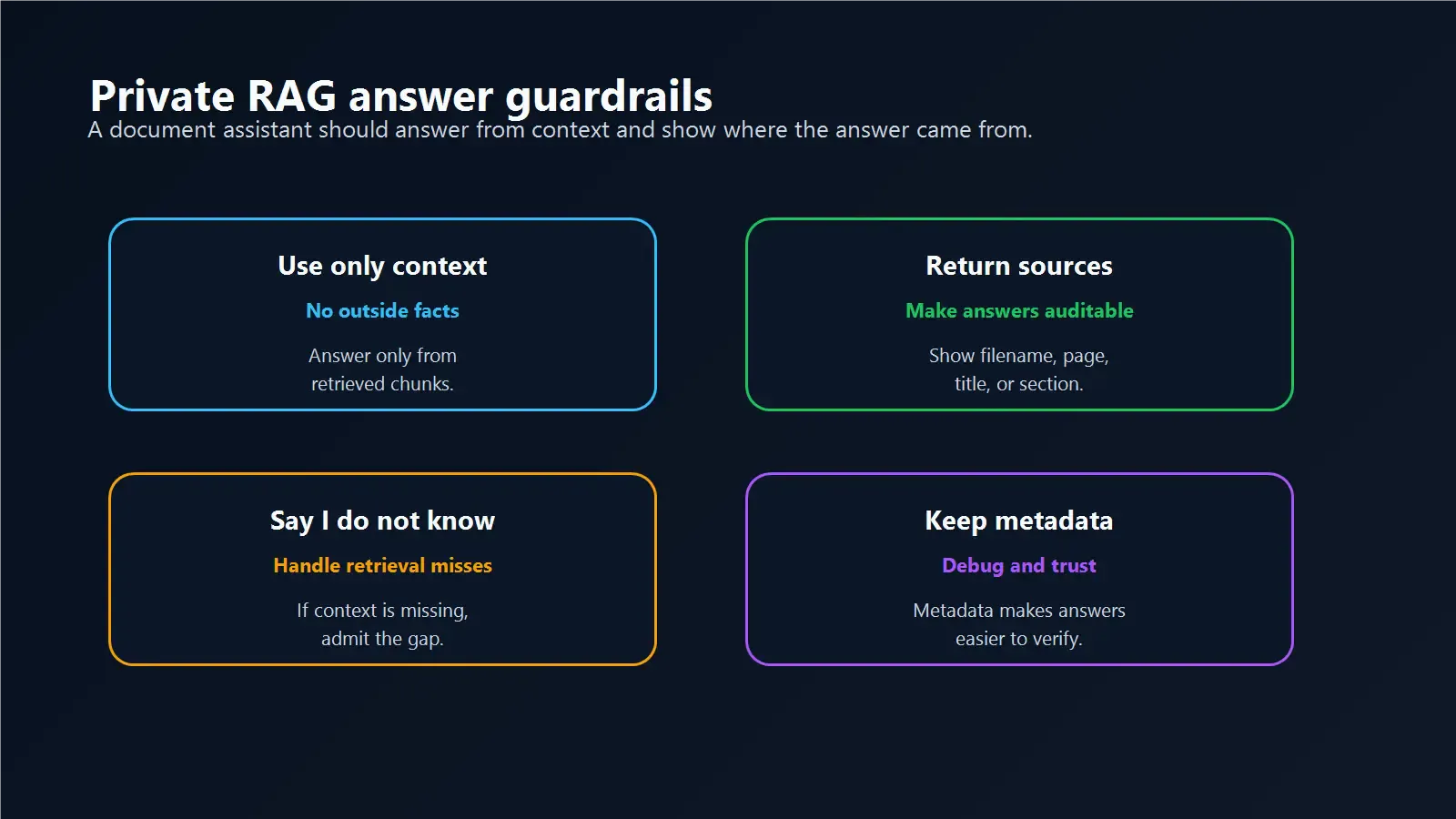
Metadata matters because users often ask follow-up questions like:
Always store source metadata if you want trustworthy answers.
When a user asks a question:
This is the retrieval part of RAG.
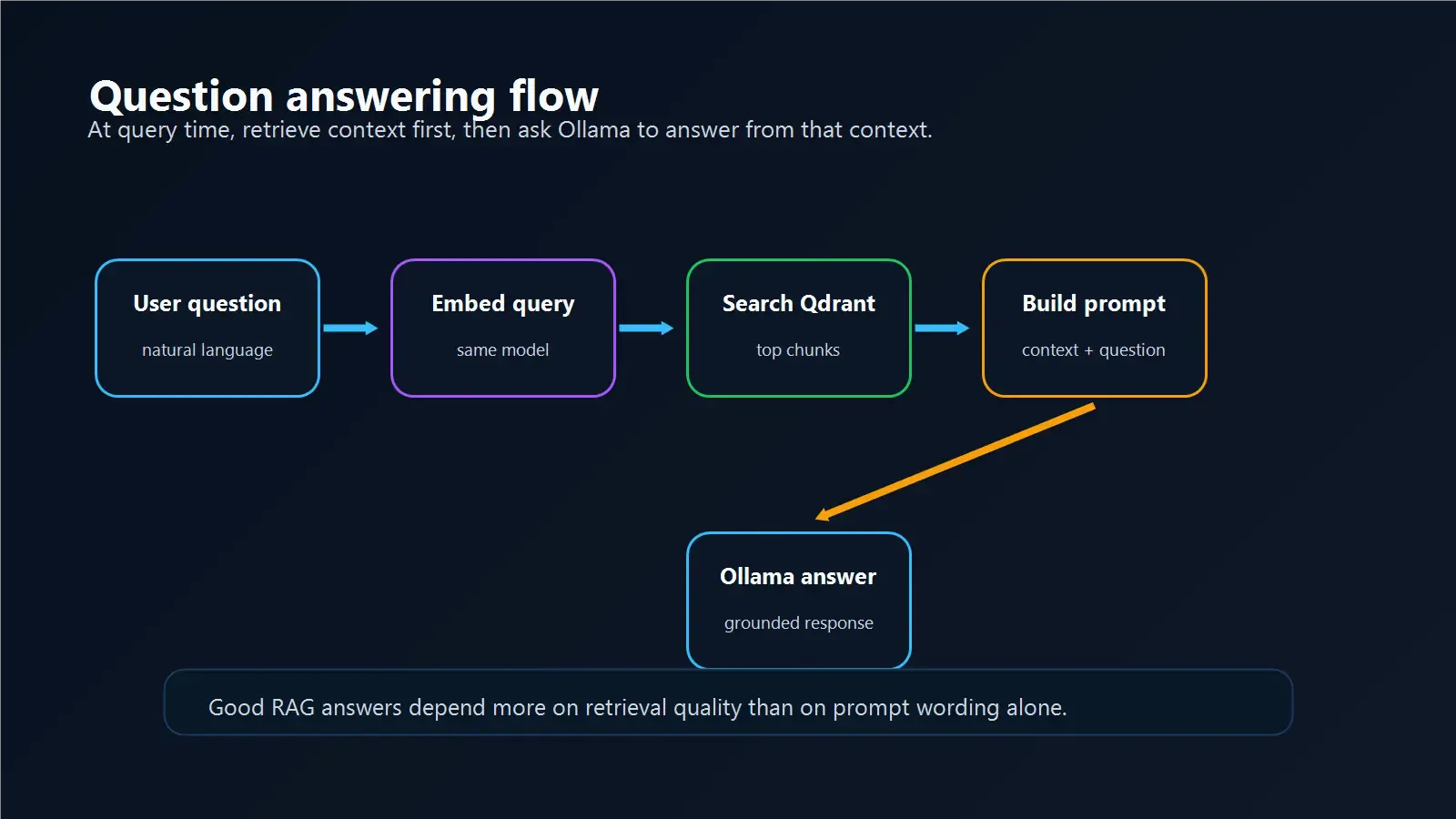
The prompt should tell the model to answer only from retrieved context.
Example:
You are a helpful assistant. Use only the provided context.
If the answer is not in the context, say you do not know.

Context:
{retrieved_chunks}

Question:
{user_question}
This reduces hallucination. It does not eliminate it completely, but it gives the model a much better source of truth.
This is the high-level shape, not a full production app:
from langchain_ollama import OllamaEmbeddings, ChatOllama
from langchain_qdrant import QdrantVectorStore

embeddings = OllamaEmbeddings(model="embeddinggemma")
llm = ChatOllama(model="gemma4")

vector_store = QdrantVectorStore.from_existing_collection(
    embedding=embeddings,
    collection_name="docs",
    url="http://localhost:6333",
)

retriever = vector_store.as_retriever(search_kwargs={"k": 4})
docs = retriever.invoke("How do I install the app?")

context = "\n\n".join(doc.page_content for doc in docs)
prompt = f"Use this context:\n{context}\n\nQuestion: How do I install the app?"

answer = llm.invoke(prompt)
print(answer.content)
Use the official LangChain Ollama integration and Qdrant documentation when turning this into a real app.
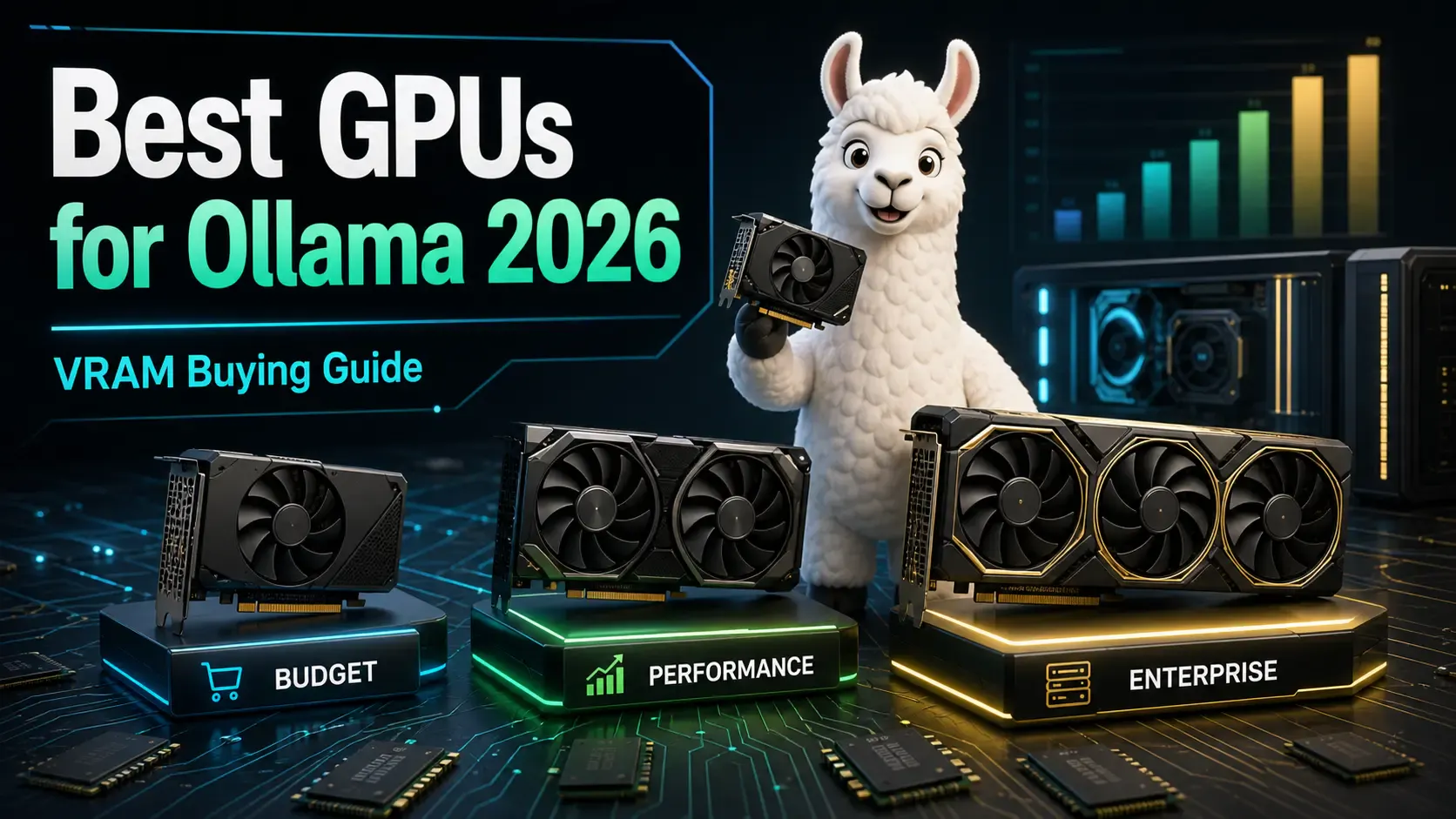
A practical buying guide to the best GPUs for running Ollama and local LLMs in 2026 — from budget cards to enterprise hardware, with VRAM requirements explained.
Compare Ollama, LM Studio, llama.cpp, and vLLM to choose the best local AI tool for development, desktop testing, control, or production serving.
A beginner-friendly guide to securing Ollama for LAN, remote, and team access without exposing your local AI server directly